
Out of Office and Temporary Away Messages
Out of office replies and temporary away messages are essential tools for managing communication during periods when you are unavailable. These automated responses ensure that your contacts are informed of your absence and can help maintain professional relationships even when you are not available to respond personally. This document outlines how to set up both out of office replies and temporary away messages effectively.
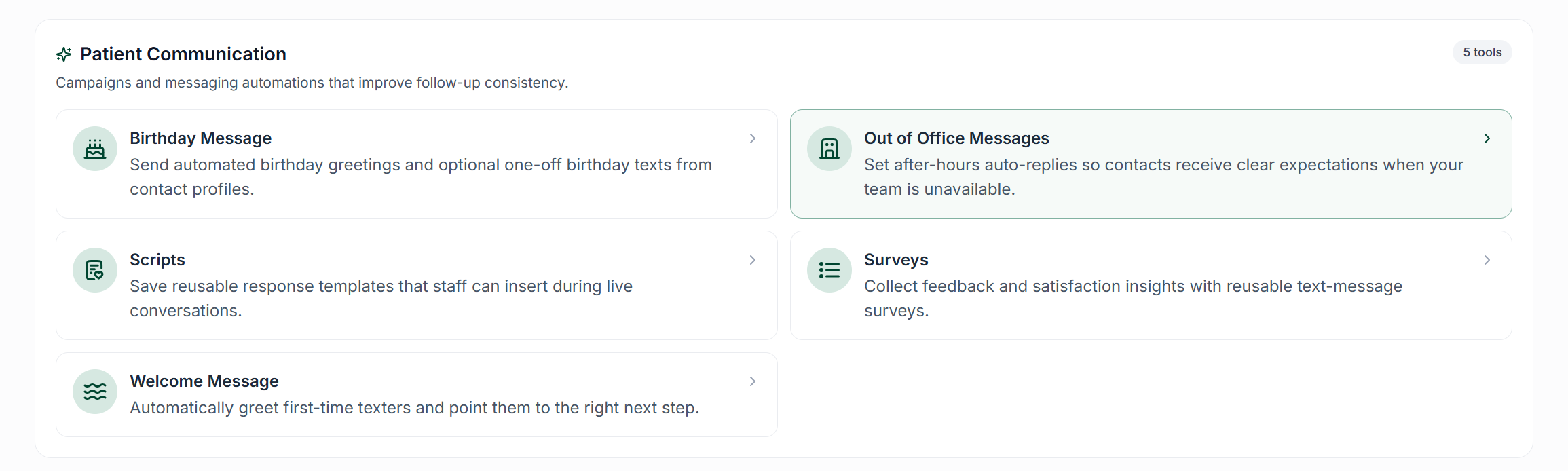
Out of Office Replies
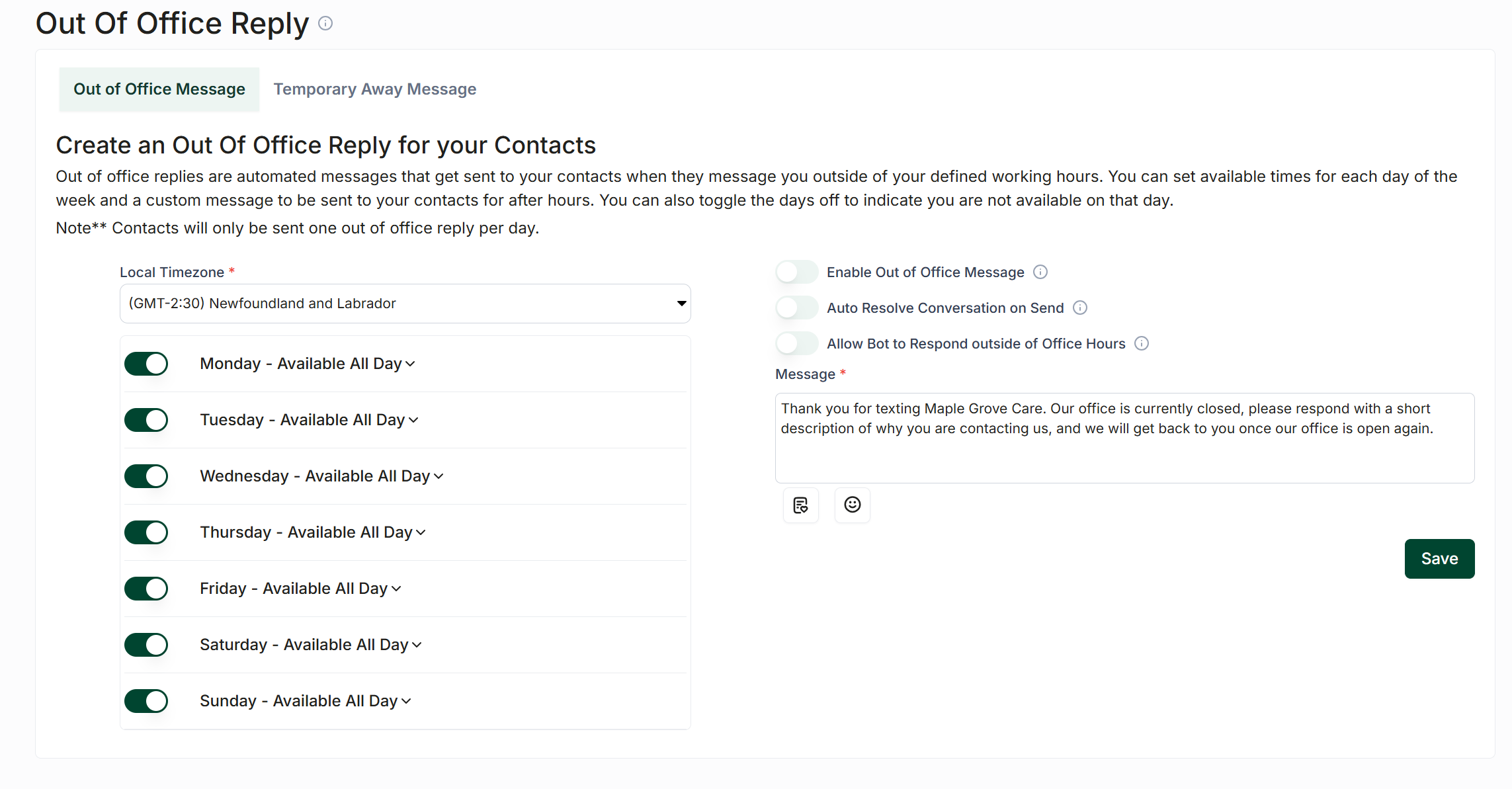
Out of office replies are automated messages sent to contacts when they attempt to reach you outside of your regular business hours. This feature helps manage expectations and keeps your contacts informed about your availability.
Setting Up an Out of Office Reply
To set up an out of office reply, follow these steps:
Navigate to the Workflows page and click on Out of Office Messages.
Set your available hours by clicking the toggle button next to each day and specifying the hours during which you can be reached.
Once you have configured your days and times, enable the out of office messages by clicking the toggle button above the message input field.
You have the option to allow bots to respond to messages received during out of office hours and to automatically resolve conversations when an out of office reply is sent.
Compose your message and then press Save to apply your changes.
Temporary Away Messages
Temporary away messages are automated responses that can be set up to inform contacts of your unavailability for a specified period. These messages are particularly useful during vacations or holidays when you will not be responding to text messages.
Creating a Temporary Away Message
To create a temporary away message, follow these steps:
Go to the Workflows page and click on Out of Office Messages. Then, select the Temporary Away Message tab located just below the heading.
Choose the duration for which you want the message to be active and write your message in the provided text box.
After completing the above steps, click Create to activate your temporary away message.
If you need to disable the message before the end date, simply click the Disable button that appears once the message is created.
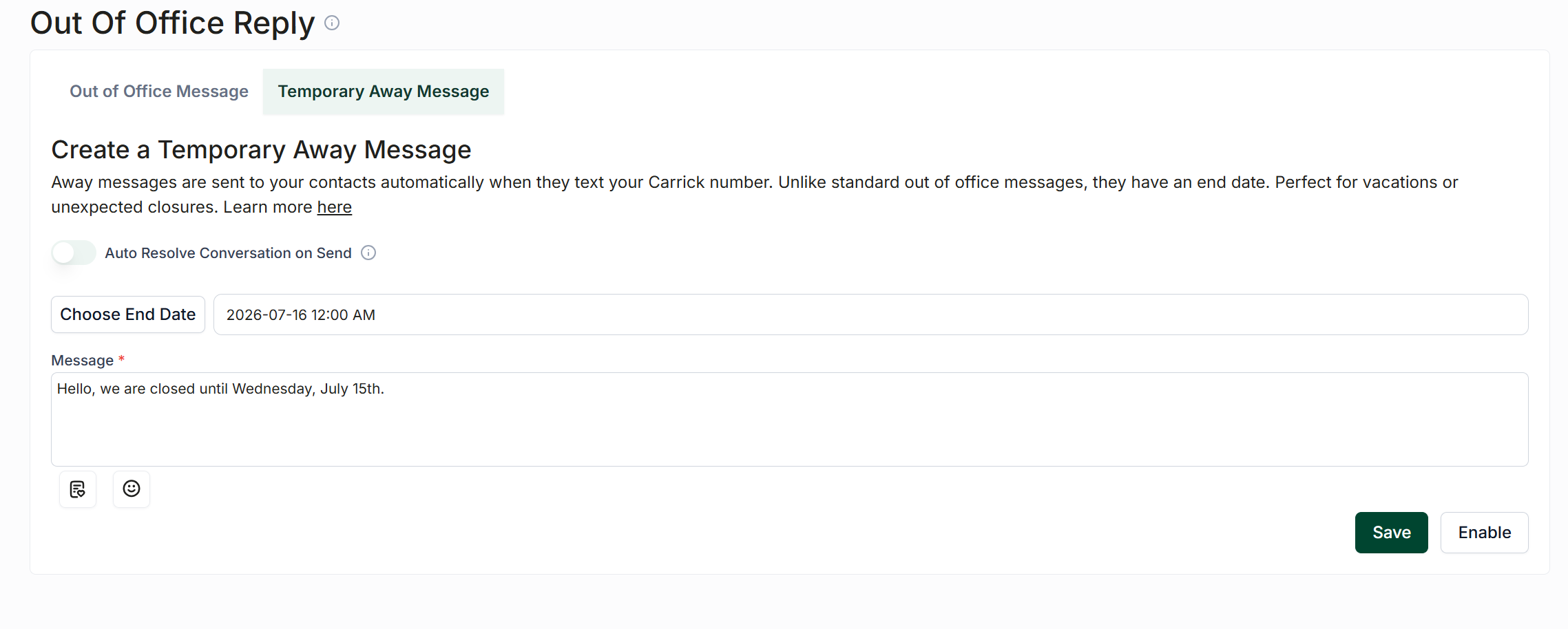
Similar to out of office replies, the option to automatically resolve a conversation is also available when temporary away messages are sent. Please note that contacts will only receive this message once every 24 hours per instance.