
Keywords
Keywords play a crucial role in automating contact management by allowing specific words or phrases to trigger actions when received in a message. This document outlines the process of viewing, creating, and managing keywords within the Carrick Health platform.
Viewing Active Keywords
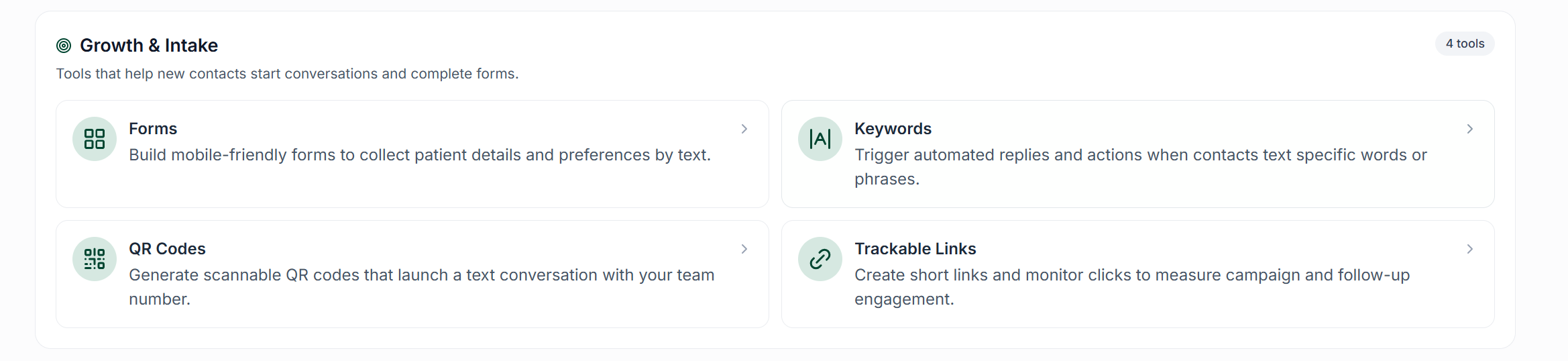
To view your active keywords, navigate to the Workflows page from the left side navigation pane, and then click on Keywords.
Creating a Keyword
To create a new keyword, click the Create Keyword button on the Keywords page. Follow the steps below to set up your keyword:
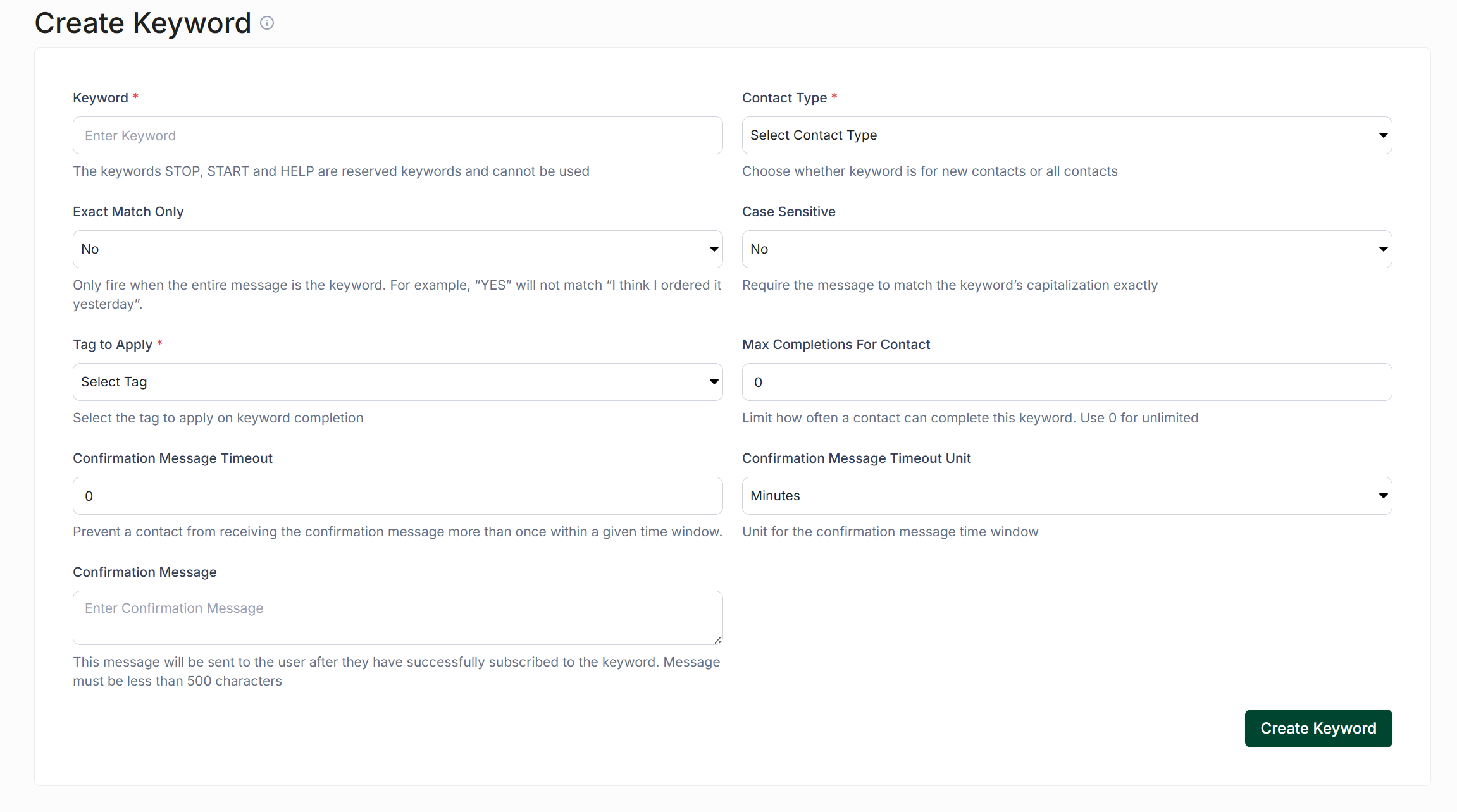
Define the keyword: Enter the keyword that will trigger the action. Keywords are not case sensitive by default, but using all capital letters is recommended to make it clear that it is a keyword.
Exact match requirement: If enabled, the keyword will only trigger when the entire message is an exact match, with no additional characters or text.
Select a tag: Choose the tag that will be applied when the keyword is received.
Confirmation message options: The Confirmation Message and Confirmation Message Timeout settings are optional. You can send an automatic response acknowledging that the keyword was received. The timeout determines how long the contact must wait before receiving the same confirmation message again.
Contact selection: Choose whether the keyword applies to new contacts only or to all contacts. When new contacts only is selected, existing contacts who send the keyword will not receive the tag or confirmation message.
Case sensitivity: Choose whether the keyword must match the exact capitalization entered.
Limit keyword usage: Set the number of times each contact can use the keyword. In most cases, a limit of 1 is sufficient unless the keyword will be reused.
Confirmation message timeout unit: Select the unit of time used to measure the confirmation message timeout.
Finalizing the Keyword Creation
Once you have configured all the options, click the Create Keyword button to finalize the process.