
Segments
Segments are essential tools for effectively managing and targeting your audience. They allow you to create specific groups based on various criteria, ensuring that your communications are relevant and tailored to the needs of your contacts. This document outlines how to view, create, and edit segments within our platform.
What are Segments?
Segments are collections of rules or filters that help you define a specific portion of your audience. They are constructed using tags, contact fields, and other attributes associated with your contacts. Segments play a crucial role in broadcasting, as they enable you to select the appropriate audience for your communications.
Viewing Segments
To view your list of segments, follow these steps:
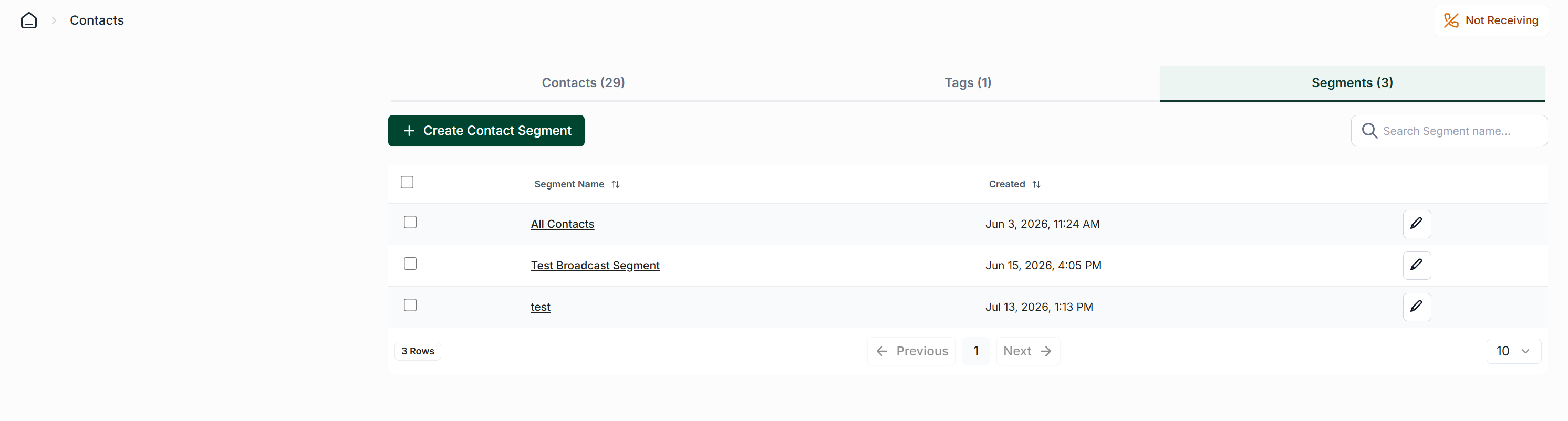
Click on the Contact page from the left side navigation bar.
Select the Segments tab located just below the heading.
Creating Segments
To create a new segment, click the Create Segment button located at the top left side of the segment table.
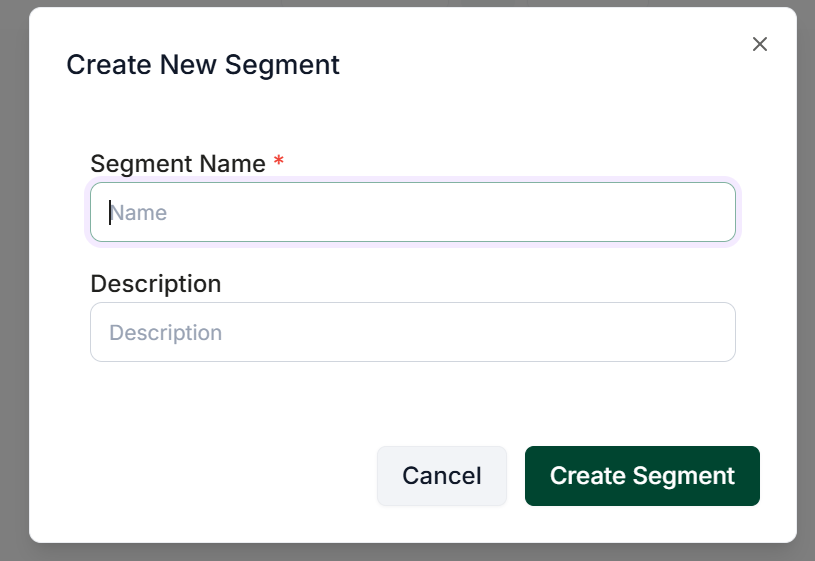
Each segment must have a name, and you may also include an optional description. Enter the desired information for your segment and then click the Create button to finalize the process.
Editing a Segment
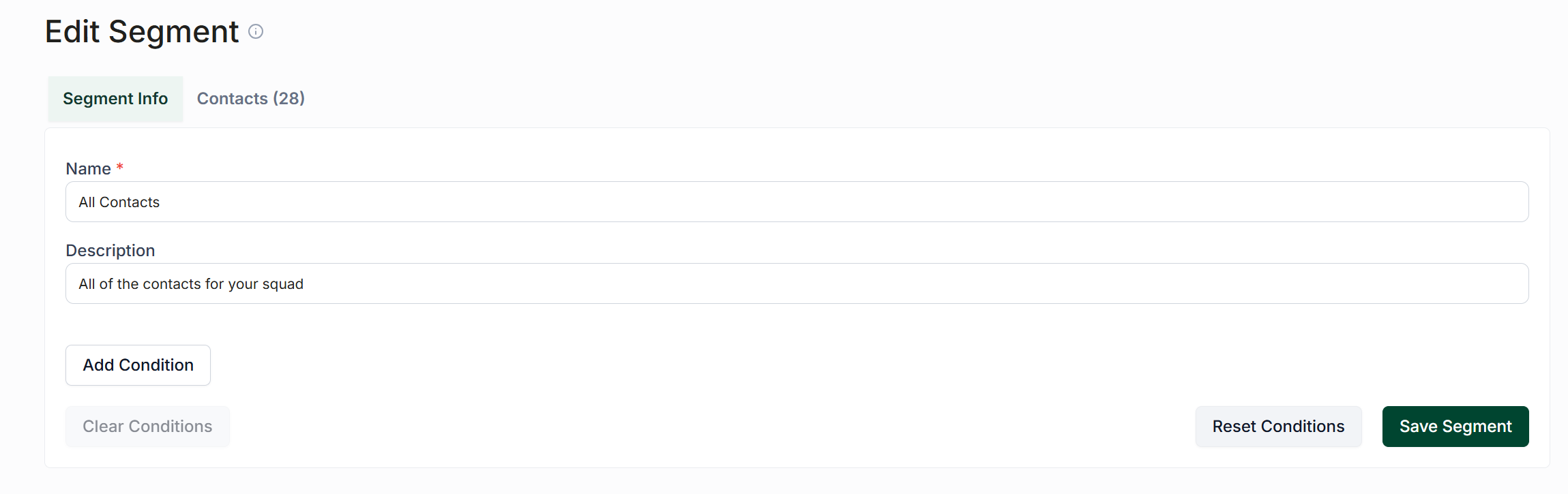
Once you have created a segment, you will be directed to the edit segment page.
To configure your segment, it is essential to add conditions; otherwise, the segment will include all contacts by default.
To add conditions, click the Add Condition button. This action will display a dropdown menu prompting you to choose a filter.
Available Filters
You can utilize any of the available filters to define your segment:
Tag: This filter allows you to create a segment of contacts who either have or do not have a specified tag applied to them.
Custom Field: This filter enables you to build your segment based on the information stored in custom fields.
You can add multiple conditions to your segment to further refine your contact list.
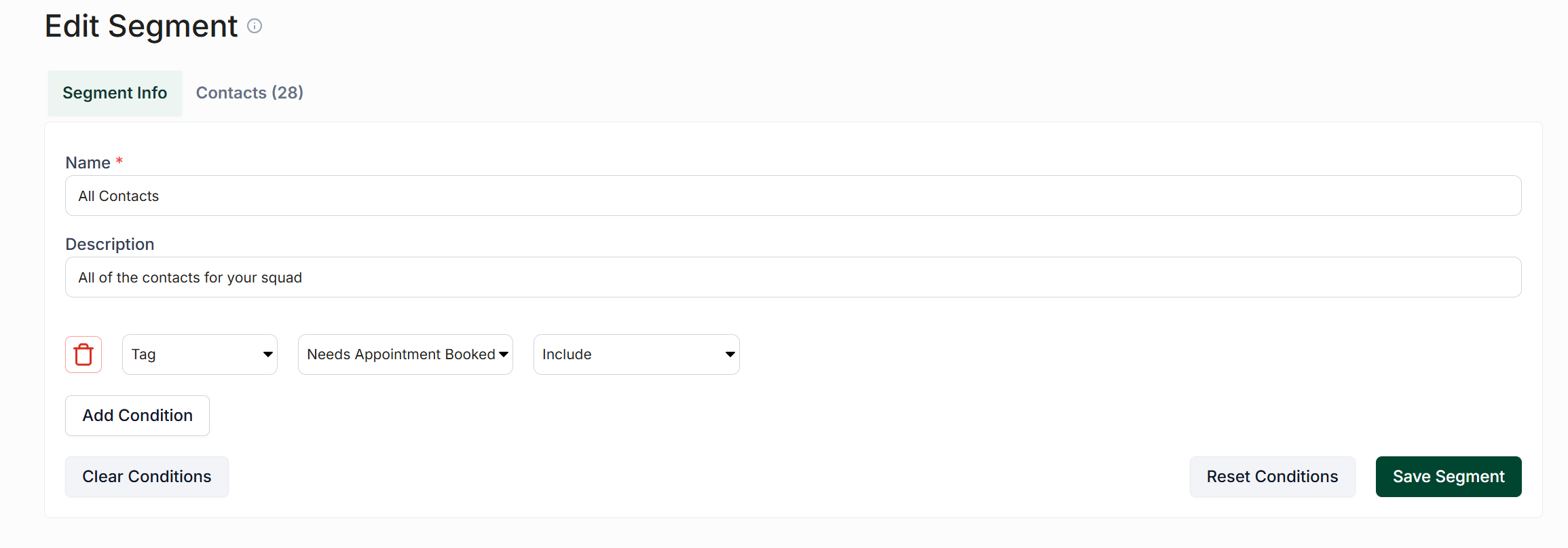
Once you have established all necessary conditions, click the Save Segment button located at the bottom right side to update the segment conditions. This action will also refresh the contacts included in the segment, which you can view by clicking the Contacts tab below the heading.