Contact Notes
In Carrick Health, the ability to write notes on each of your contacts is a valuable feature that helps you and your team remember important information. This guide will walk you through the process of creating and managing notes for your contacts effectively.
Accessing the Contacts Page
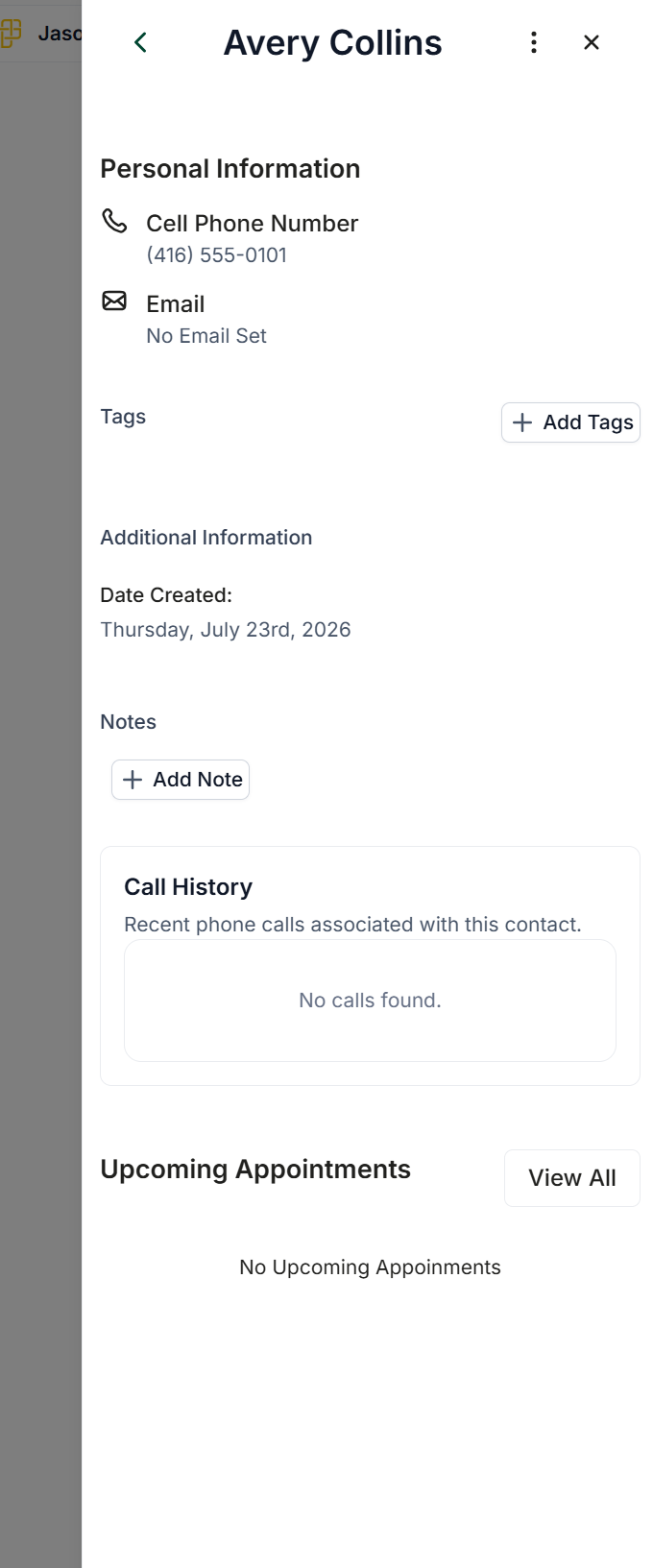
To get started, navigate to the contacts page using the left-hand navigation bar. Click on the contact for which you would like to create a note.
Creating a Note
Once you have selected the contact, follow these steps to create a note:
Click the Add Note button located below the contact's information.
Write your note in the area provided. You can enhance your note by attaching images or emojis using the buttons available below the text box.
After completing your note, click Create to save it.
Creating Notes in Conversations
Notes can also be created directly within a conversation and displayed in-line. To do this, follow these steps:
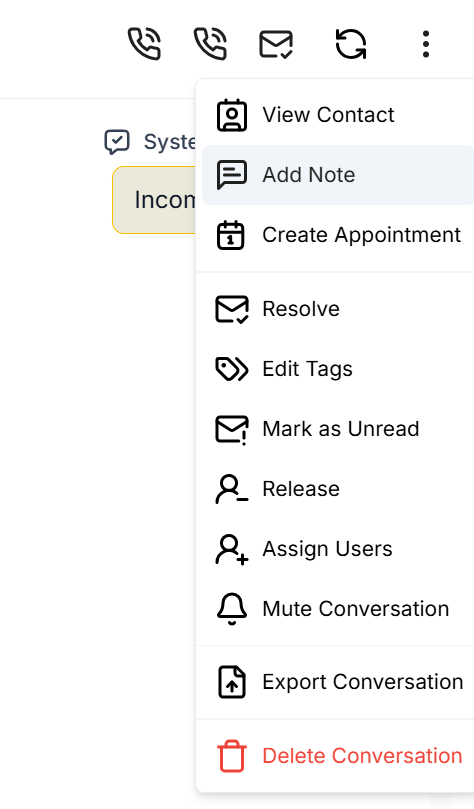
Click the three stacked dots in the top right corner of your conversation.
Select Add Note, type your note, and then click Create. Your note will now be displayed in-line within the conversation.
Tagging Teammates in Notes
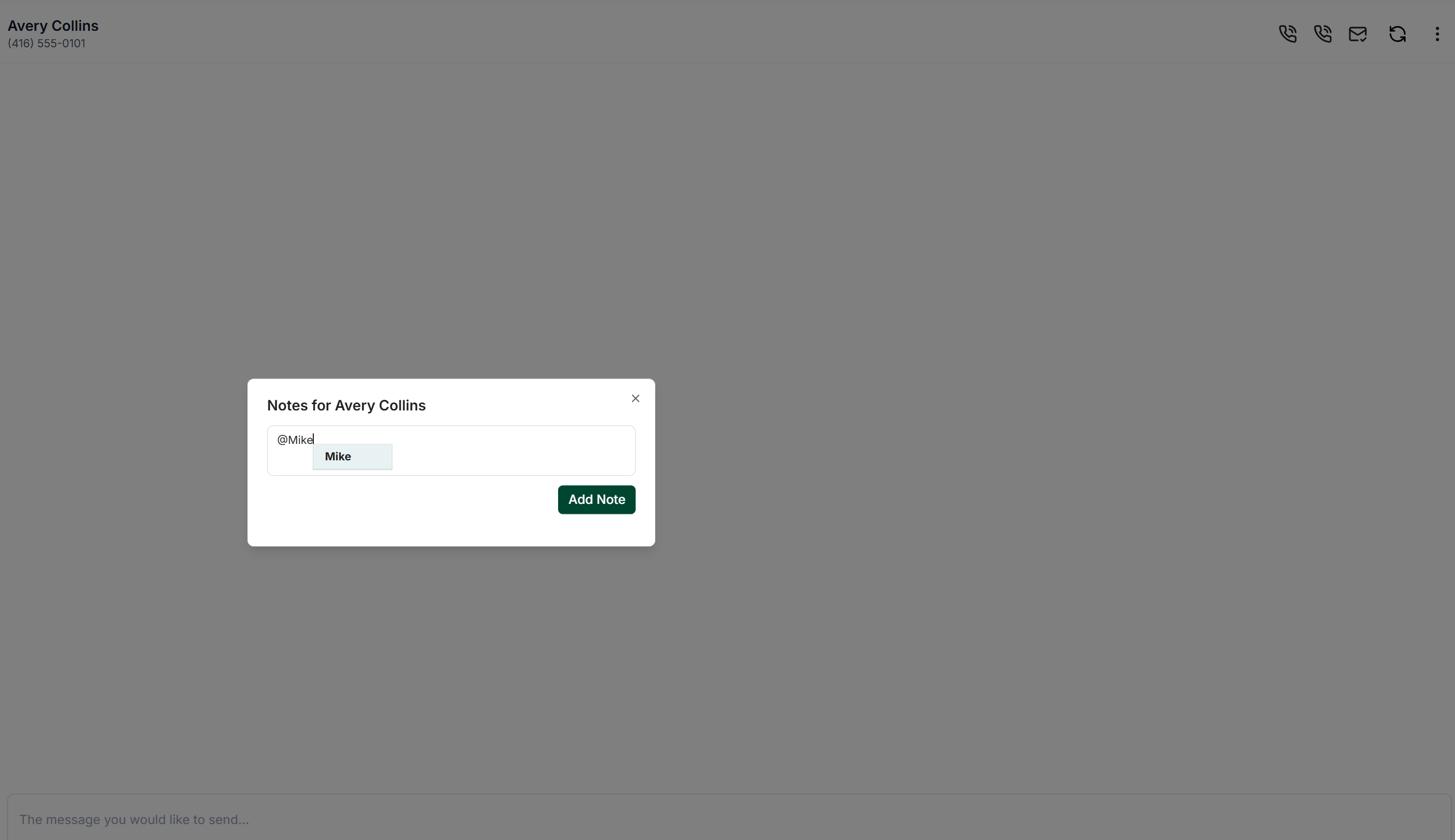
To ensure that specific team members are notified about a note, you can tag them. Simply type their name with an @ symbol in front of it. This feature is particularly useful when a particular team member is required to follow up on a conversation.