
Mini Broadcasts
Mini Broadcasts are an effective tool for small, targeted communications, ideal for sending messages to 150 or fewer contacts. This guide will walk you through the steps to create and send a Mini Broadcast efficiently.
Navigate to the Broadcasts Page
To begin, access the Broadcasts page from the left-hand navigation pane. At the top of the page, you will find several buttons:
Create a Mini Broadcast
Create an Appointment Broadcast (available for Healthcare accounts with Appointments enabled)
Create a Mass Broadcast
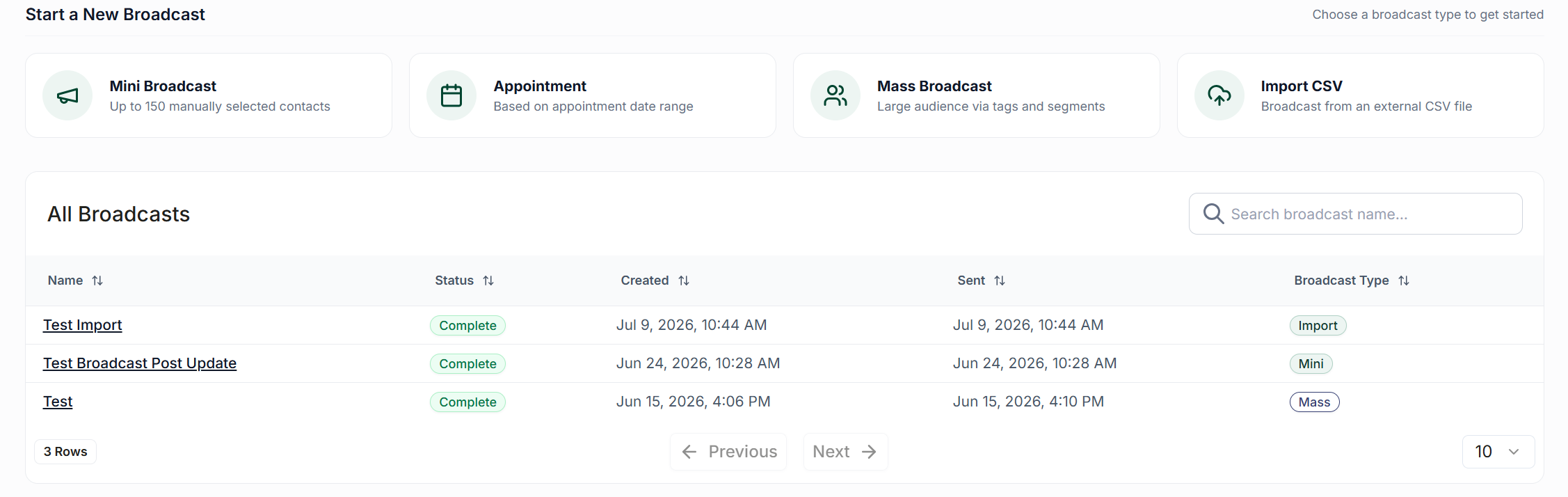
Click on Create a Mini Broadcast to get started.
Compose Your Message
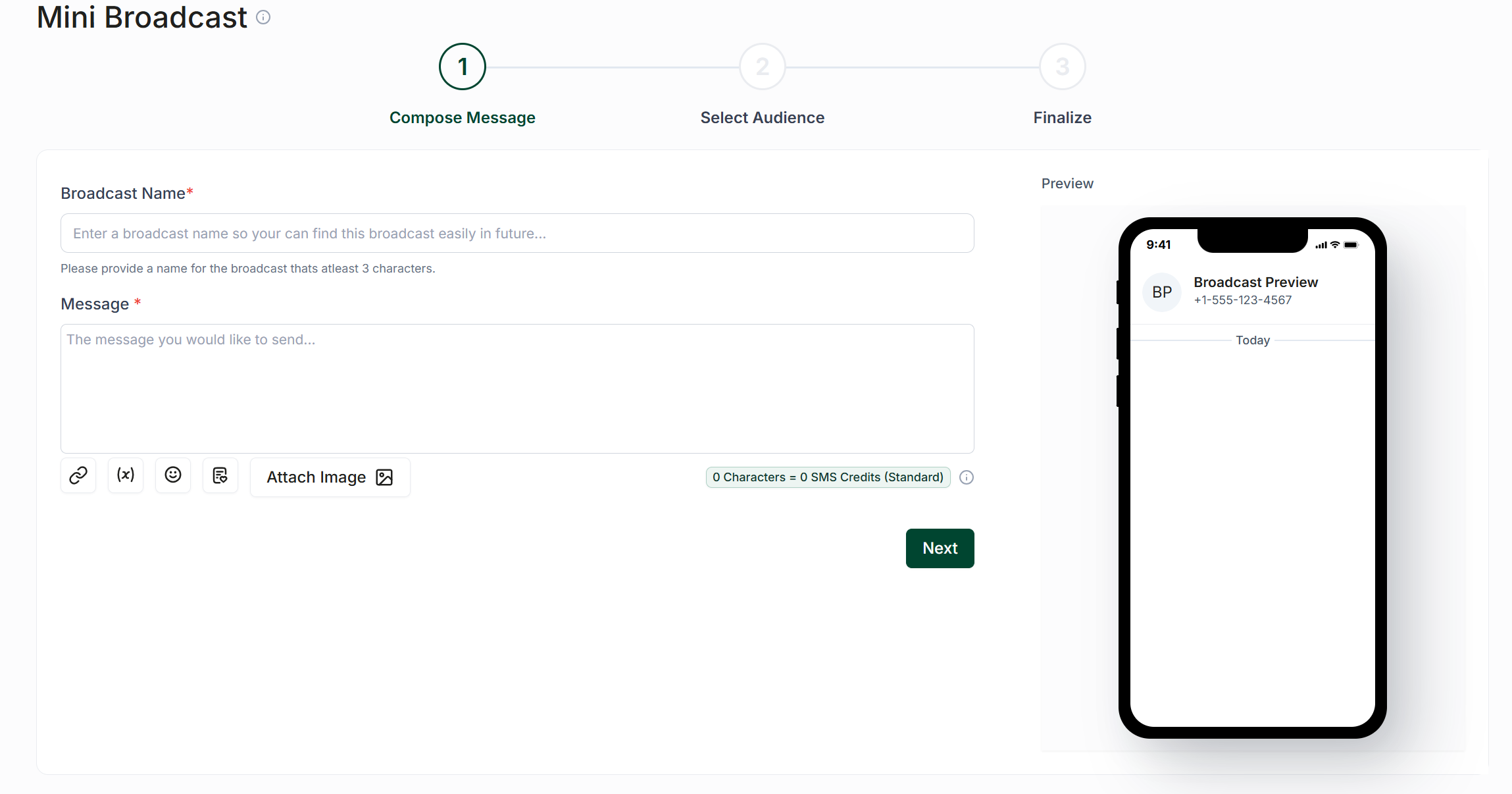
Begin by assigning a name to your Mini Broadcast. Please note that this name is for internal use only and will not be visible to your contacts.
Next, write your message in the provided text box. You can utilize the toolbar below to:
Add links
Insert template fields
Use emojis
Attach scripts or images
In the bottom right corner, you will see the number of SMS credits that will be used per contact for the message. Once your message is ready, click Next.
Select Your Audience
A table displaying all your contacts will appear. You can select up to 150 individuals to receive the broadcast. If you need to reach more than 150 contacts, consider using a Mass Broadcast instead.
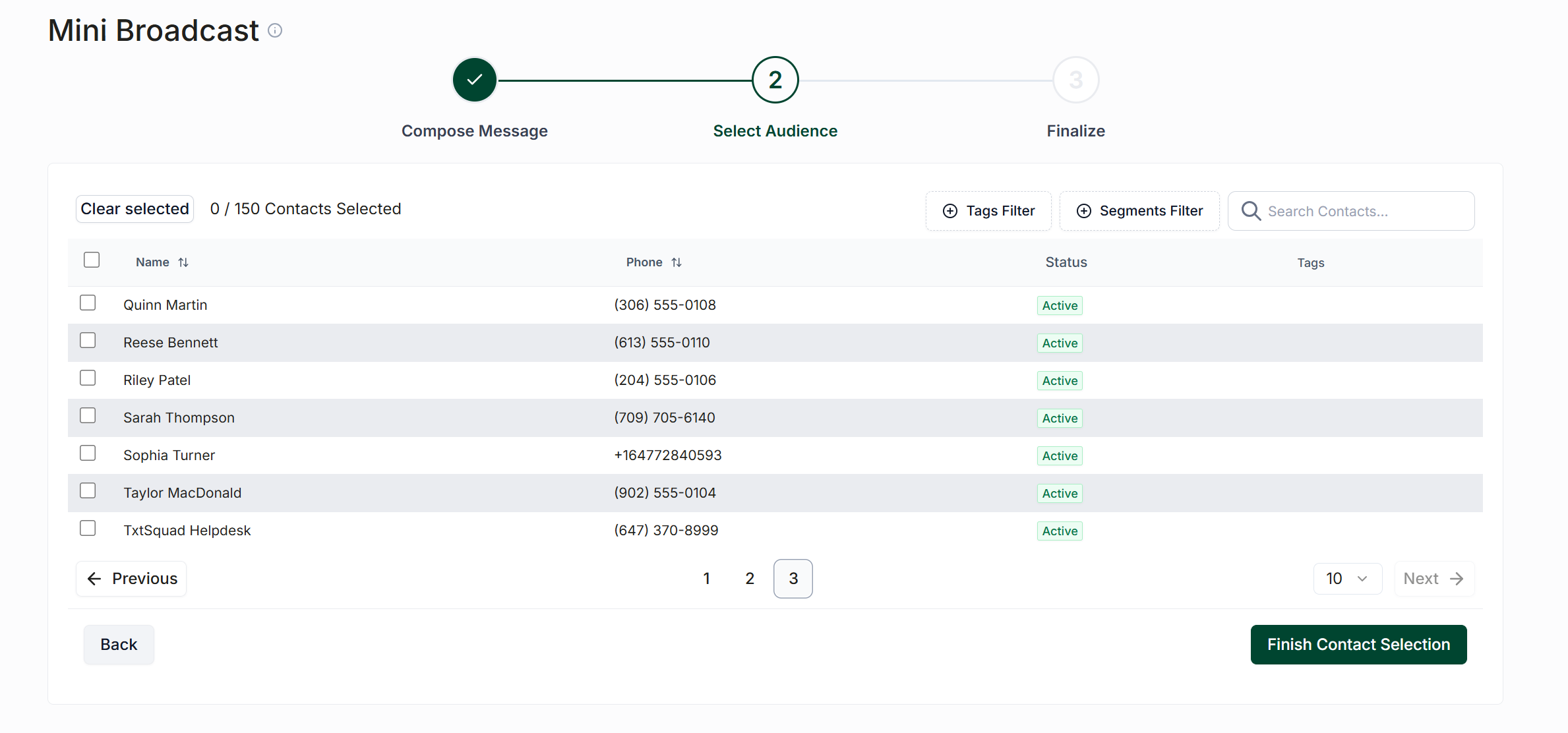
After selecting your audience, click Finish Contact Selection.
Finalize & Send
At this stage, you will have the opportunity to:
Preview your message
Schedule a time for sending (or leave the default option to send it immediately)
View the estimated completion time based on the message size and the number of recipients
(Optional) Click Send Sample Message to preview it on your device
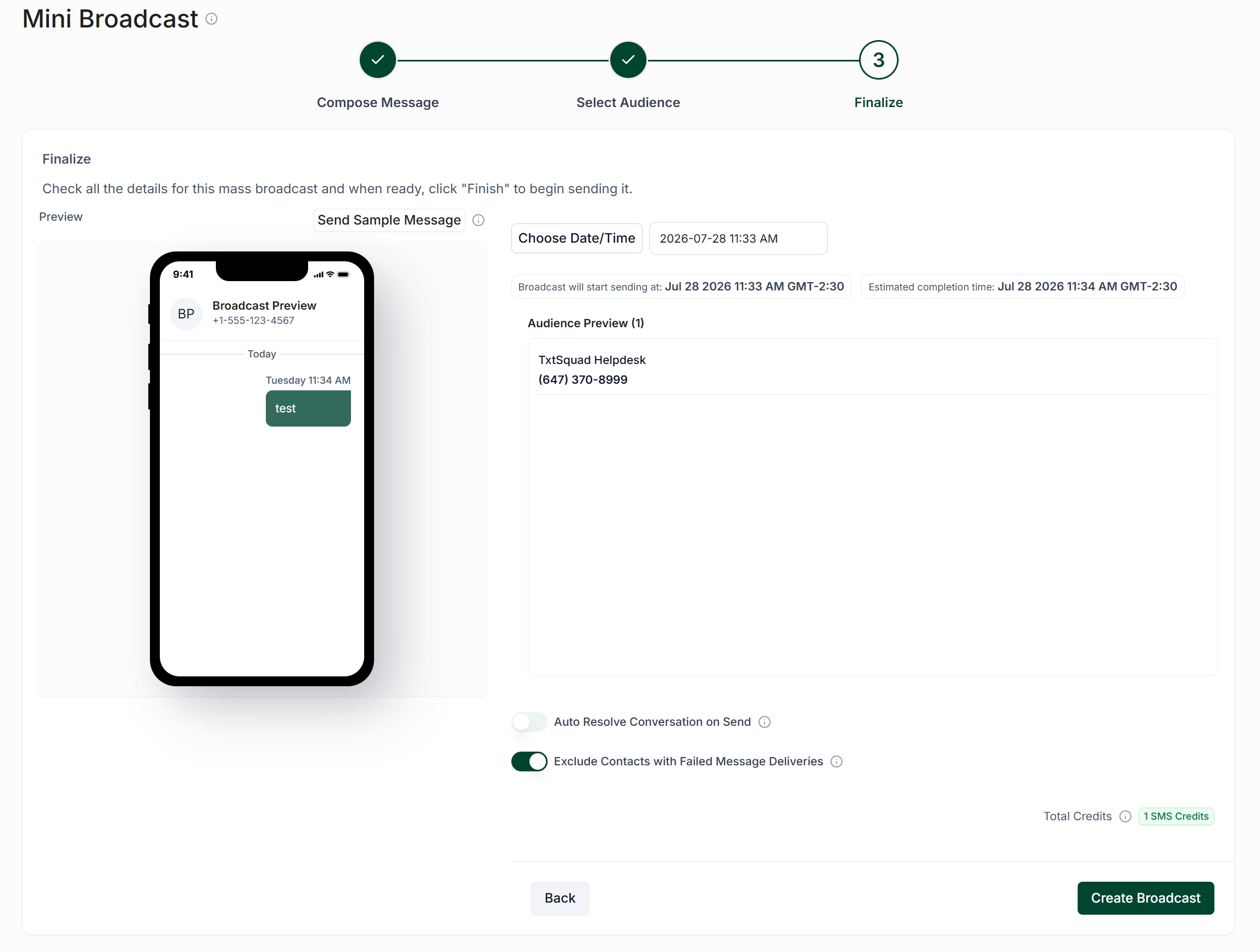
When you are ready, click Finish, then Create Broadcast to send or schedule your message.