
How to Add or Remove Users in Carrick (Formerly TxtSquad)
Managing user access within Carrick Health is a straightforward process designed to ensure that only authorized personnel can access sensitive information. This document outlines the steps required to add or remove team members from your organization. Please note that only Admins have the authority to manage user access.
Adding a User
To add a new user to your organization, please follow these steps:
Log in to your Carrick account.
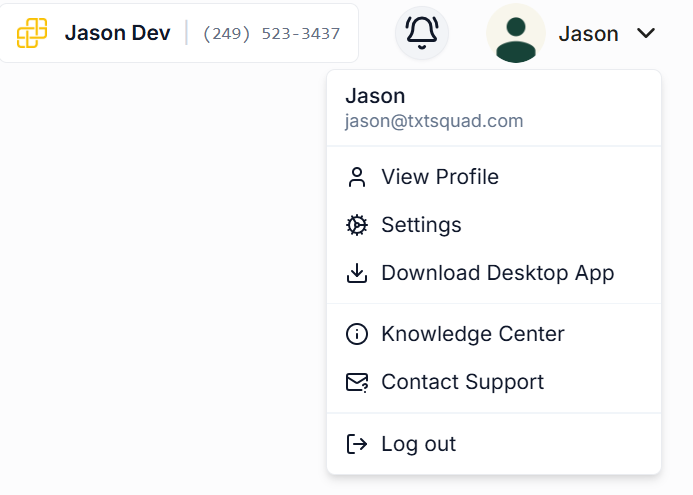
Click on your name located in the top-right corner of the screen.
Select Settings from the dropdown menu.
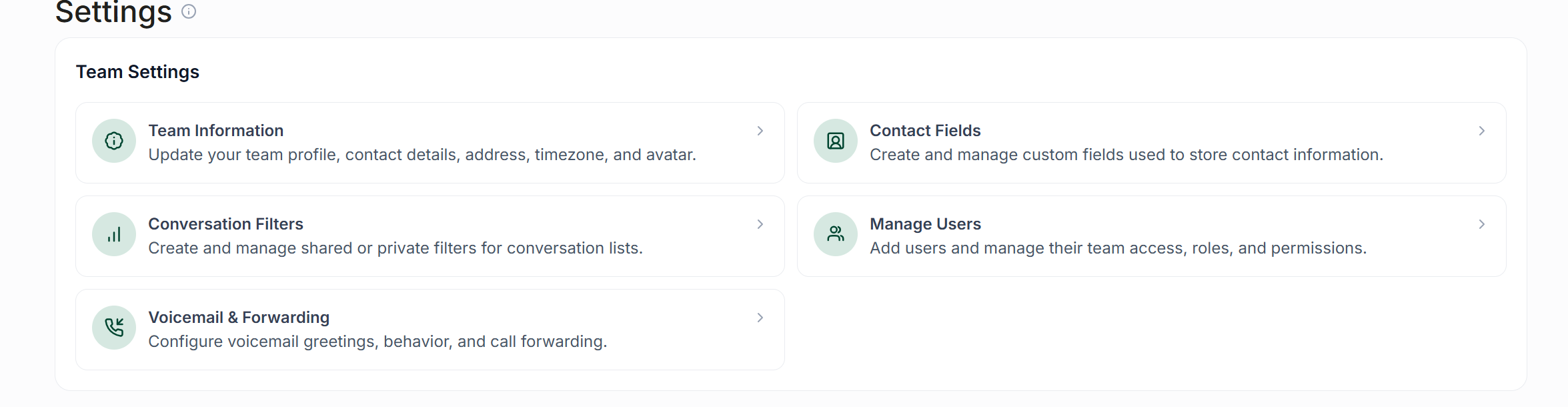
Scroll down and click on Manage Users.
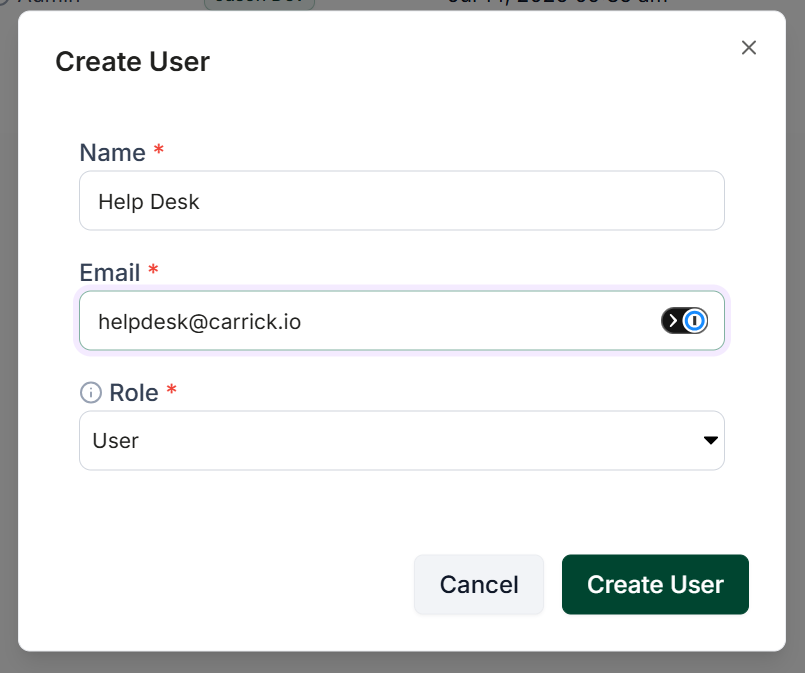
On the Manage Users page, click the Add User button at the top-left of the table.
Enter the required user details and confirm to add them.
Please Note: Account activation emails are only valid for a few days. If the activation link expires for a user before they activate their account, you can click the mailbox icon to the right side of their name in the Users table to re-send the activation emails.
Removing a User
To remove a user from your organization, please follow these steps:
Navigate to the Manage Users page using the steps outlined above.
Locate the user you wish to remove in the list.
Click the trashcan icon next to their name to remove them.
Please Note: Removing a user is immediate and cannot be undone. Ensure that you intend to remove their access before proceeding.
Additional Notes
If you do not see the Manage Users section, your account may not have the required permissions to manage user access.