
Voicemails and Inboxes
This document provides a comprehensive guide on how to set up voicemails and inboxes within the Carrick Health system. Follow the steps outlined below to ensure proper configuration and functionality of your voicemail settings.
Accessing the Workflows Page
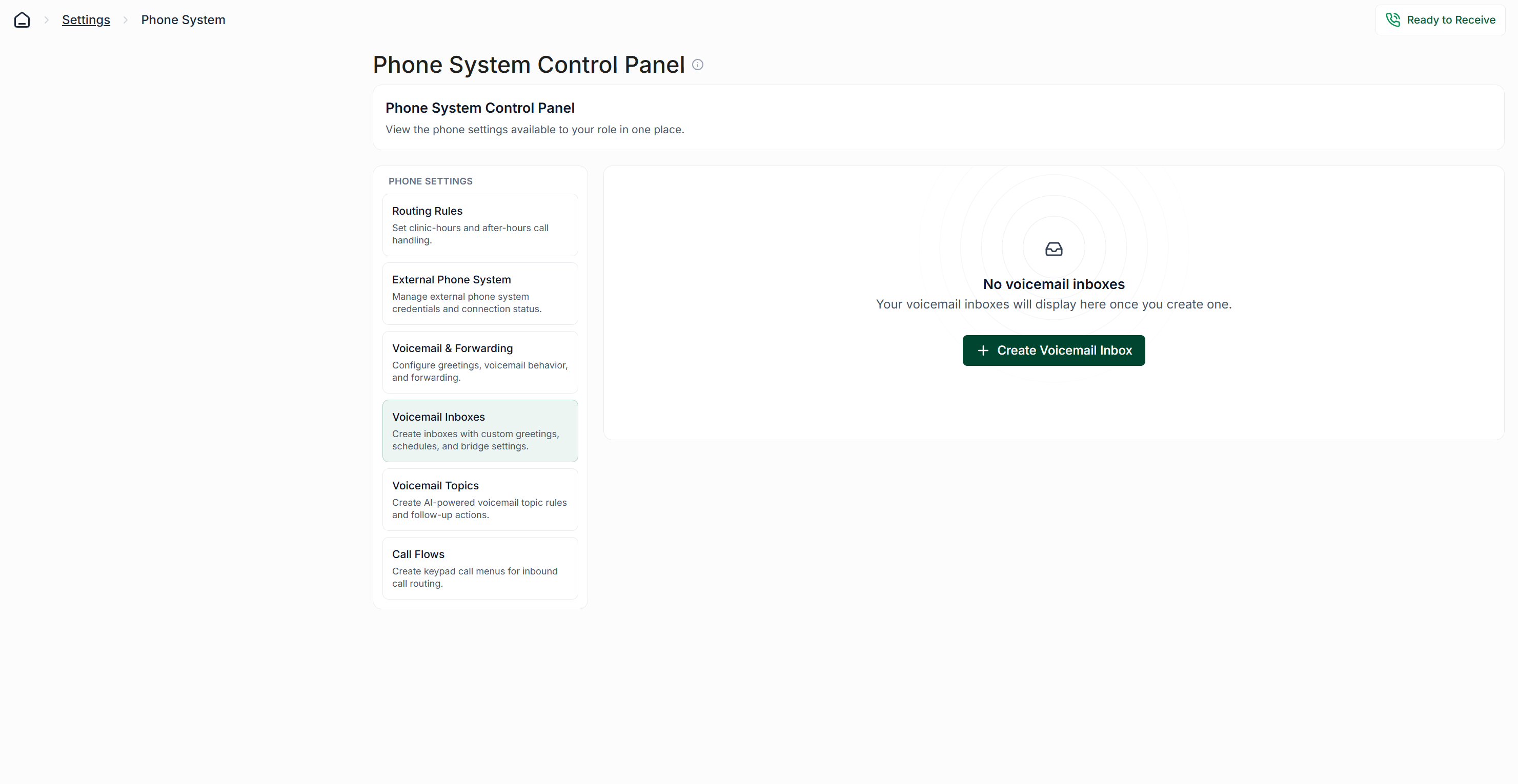
To begin the setup process, navigate to the Automations page using the left side navigation bar. Scroll down to locate the Phone Configuration button, which can be found under the Routing, AI, and Guardrails section.
Voicemail Configuration Sections
On the sidebar, you will find two sections dedicated to voicemails:
Voicemail & Forwarding: This section is for configuring a simple voicemail inbox that collects all voicemails.
Voicemail Inboxes: Use this section to set up specific inboxes for different topics or providers.
Basic Voicemail Inbox Setup
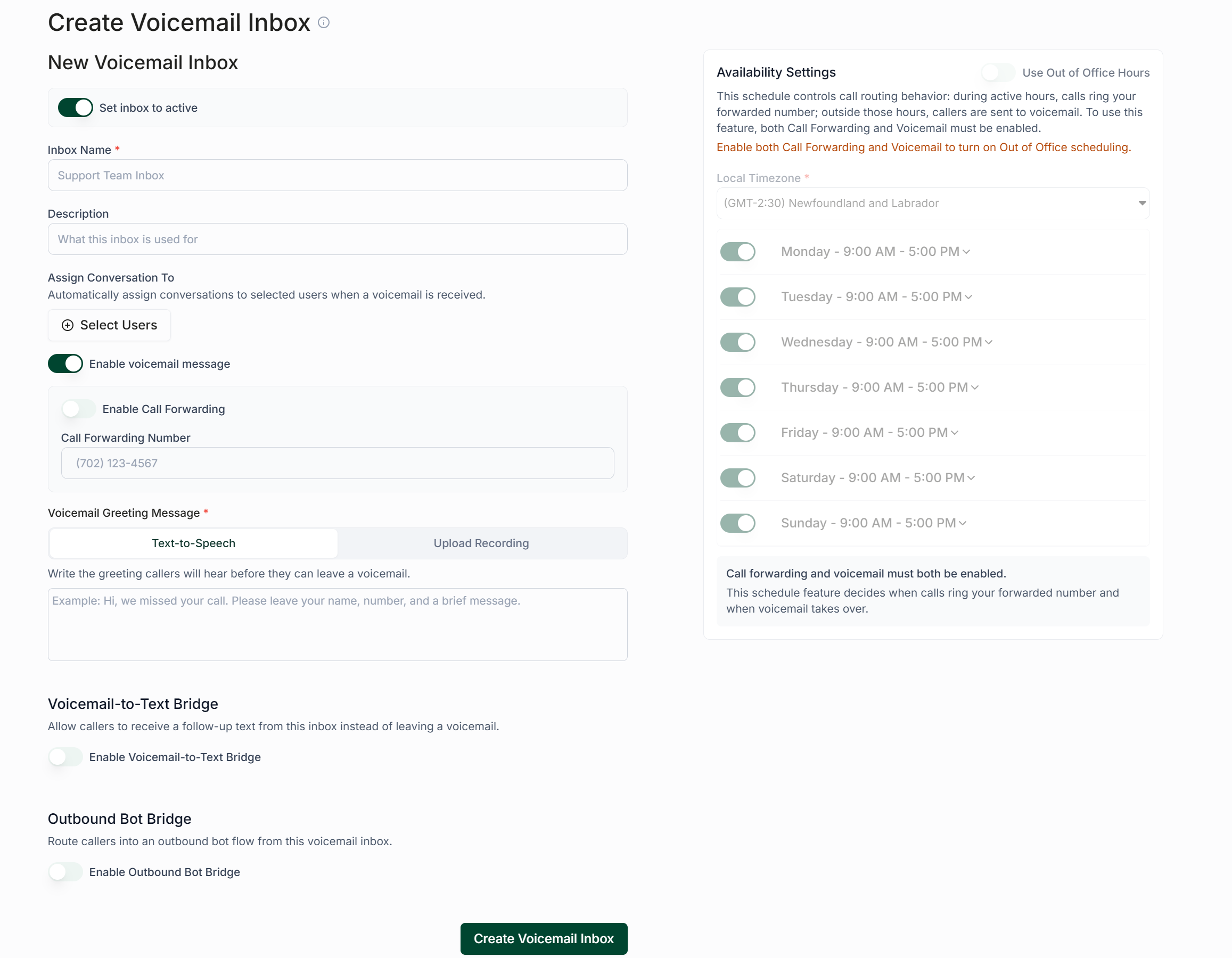
To utilize the voicemail inbox, ensure that Call Forwarding is disabled and that the voicemail inbox is enabled.
Voicemail Greeting Options
There are two options available for your voicemail greeting:
Text-to-Speech: Utilize Carrick's friendly AI voice to automatically record your message. The message will be updated when you press Save, allowing you to listen to the recording to ensure it meets your expectations.
Upload Recording: If you prefer a human voice over an AI voice, you can upload your own recording using the Upload Recording tab. Accepted file formats include MP3, WAV, and M4A, with a maximum file size of 20MB.
Voicemail-to-Text Bridge
If you wish for Carrick to follow up voicemails with an automated text message, you can enable the Voicemail to Text Bridge feature.
Upon enabling this feature, additional options will become available:
Auto-Send Text Message: By default, Carrick will only send a follow-up message when the person leaving the message presses 1. To send a message to everyone who leaves a voicemail, enable this option.
Voicemail-to-Outbound Bot Bridge
This feature allows Carrick to send a text message to anyone who leaves a voicemail. Instead of sending a single message, you can send an entire SMS bot.
To enable this option, ensure that the Voicemail to Text Bridge is disabled. Once enabled, select the desired bot from the dropdown menu and specify whether it should override any existing bots that the contact may have active. If left disabled, the outbound bot will not send if there is already an active bot in the contact's conversation. You may also choose to set a delay before the message is sent.
Saving Your Changes
Once you are satisfied with your configurations, be sure to press the Save button to apply your changes.