
Voicemail Topics
Voicemail topics are an essential feature of Carrick Health's system, enabling the assignment of tags and staff to contacts based on the topics mentioned in their voicemails. This document provides a comprehensive guide on how to configure voicemail topics effectively.
Configuring Voicemail Topics
To create a voicemail topic, follow these steps:
In the left-hand sidebar, navigate to Automations.
Scroll to the bottom of the page and select Phone Configuration. This will initially bring you to the Voicemail & Forwarding tab.
From here, navigate to the Voicemail Topics tab.
Once on the topics page, select New Topic/Create Voicemail Topic.
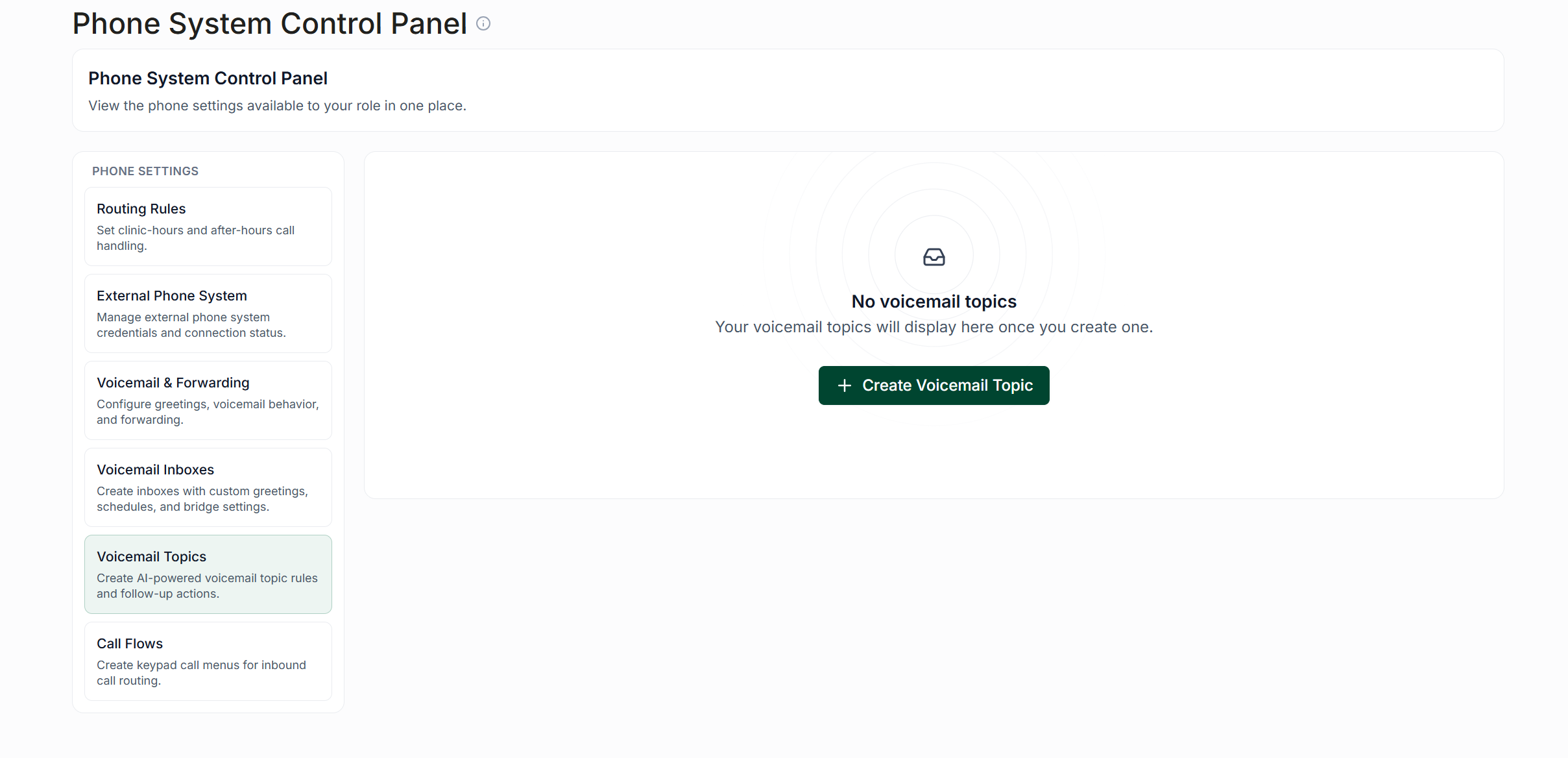
Creating a New Voicemail Topic
On the topic creation screen, you will need to:
Enter a name for the topic.
Provide a description of the topic. This description is crucial as it will be used by Carrick's AI to determine if the rule has been triggered.
Setting the Scope
Select the scope of your topic. This setting will determine whether the topic will trigger across all voicemail inboxes or only specific ones.
Defining Actions
Next, you will need to choose the action(s) that will occur when the topic rule is triggered. The following options are available:
Tags to Apply
Here, you can specify what tags will be applied to the contact's conversation when they trigger your topic rule. Examples of tags include:
Book new appointment
Cancel appointment
Assign to doctor
Assign Staff
This section allows you to determine which users a contact will be assigned to when their voicemail triggers a topic rule.
You also have the option to automatically mark the conversation as needing attention or to reopen a closed conversation when the rule is triggered.
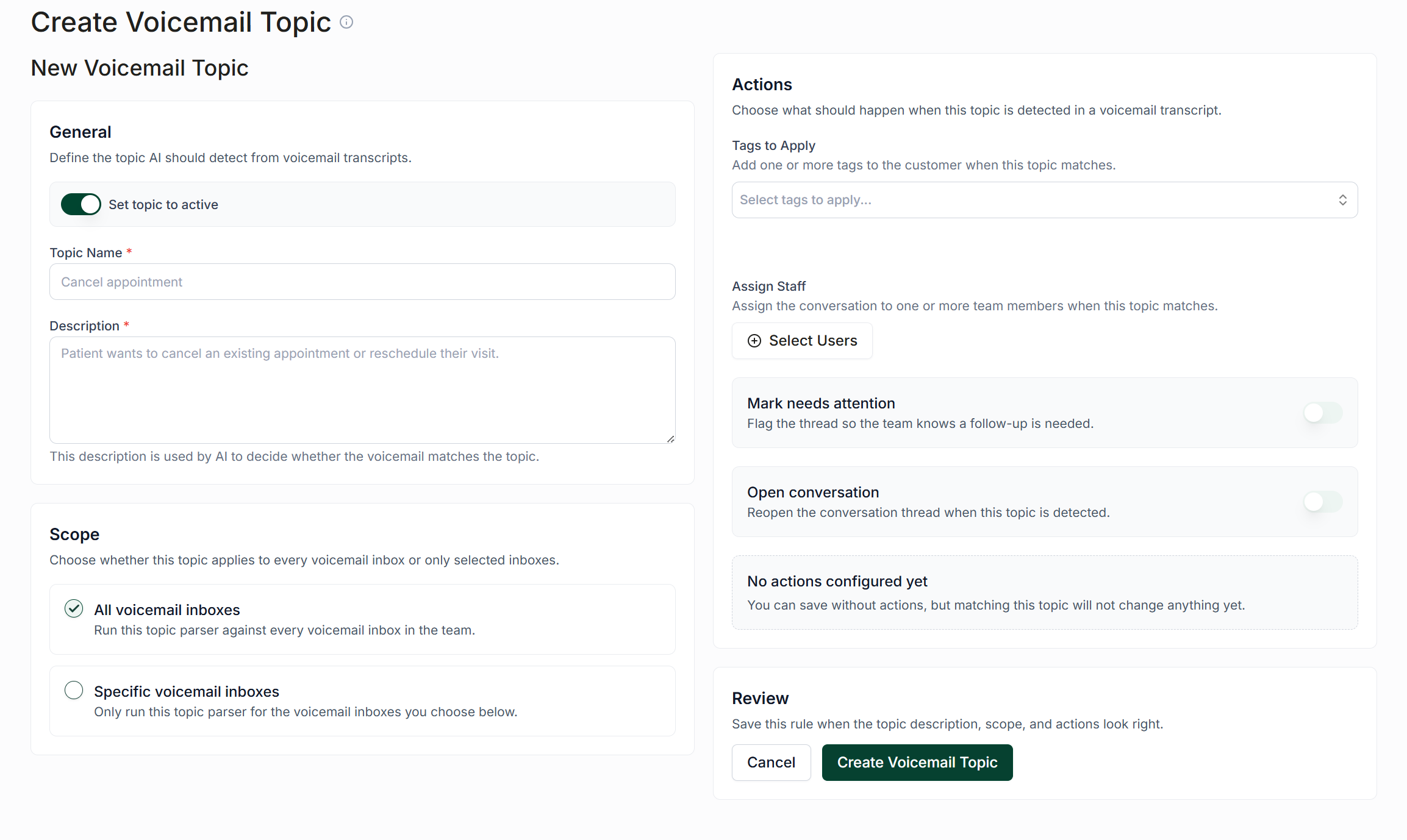
Finalizing Your Voicemail Topic
Once you have finished configuring your voicemail topic, toggle the switch in the top left corner and click Save Changes.
Your topic is now ready to activate when voicemails trigger their matching rule.