Appointment Resources/Physicians
This document provides a comprehensive guide on how to create and manage appointment resources, specifically physicians, within the Carrick Health system. Appointment resources are essential for assigning appointments and ensuring efficient scheduling.
Creating Appointment Resources
To create appointments, it is necessary to have physicians configured as appointment resources. In Carrick Health, these physicians are referred to as appointment resources.
Steps to Create an Appointment Resource
To create an appointment resource, follow these steps:
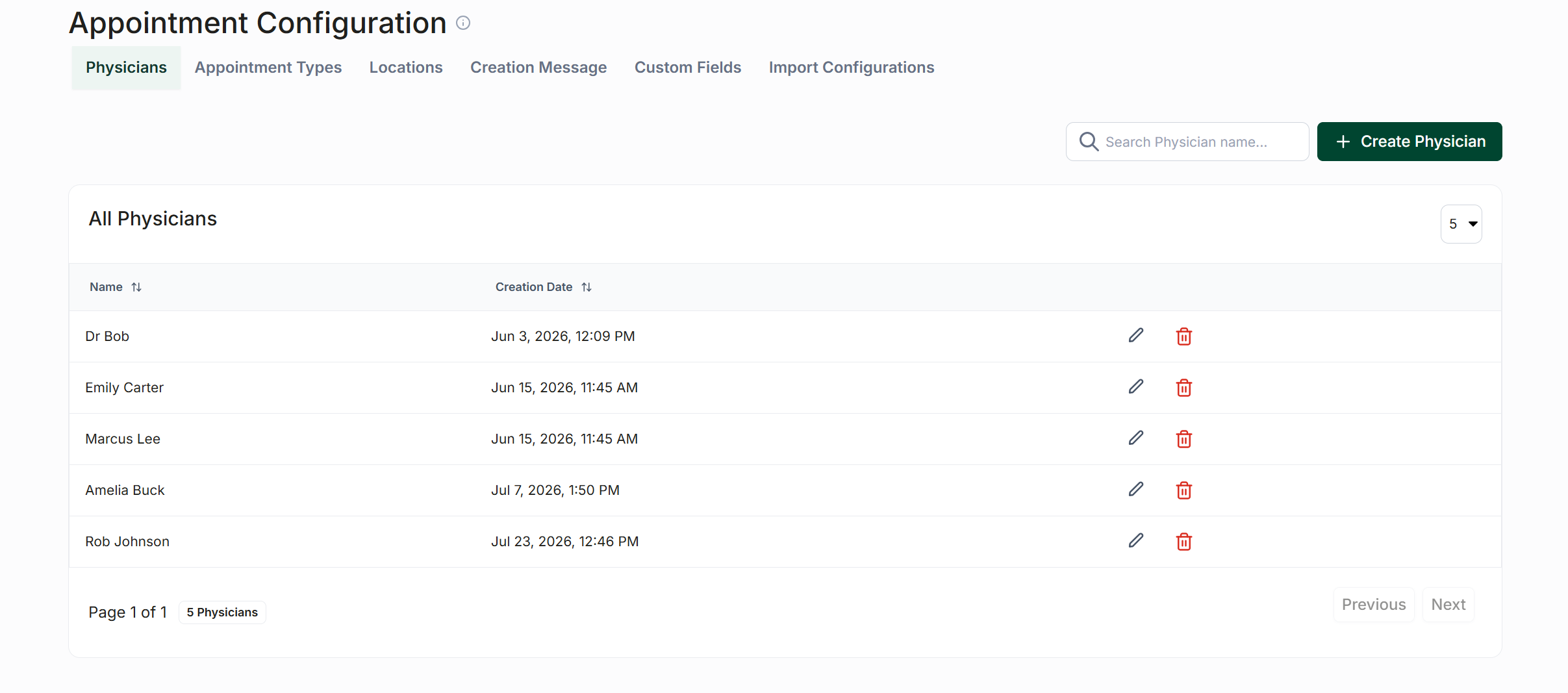
Navigate to the "Appointments" screen and click the gear icon located at the top of the page.
Select "Configure Appointment Settings" to access the "Appointment Configuration" screen.
Click the "Create Physician" button in the top right corner.
Enter the name and email of the physician, then press "Submit." This action will return you to the "Appointment Configuration" screen.


Editing Physicians
Base Information
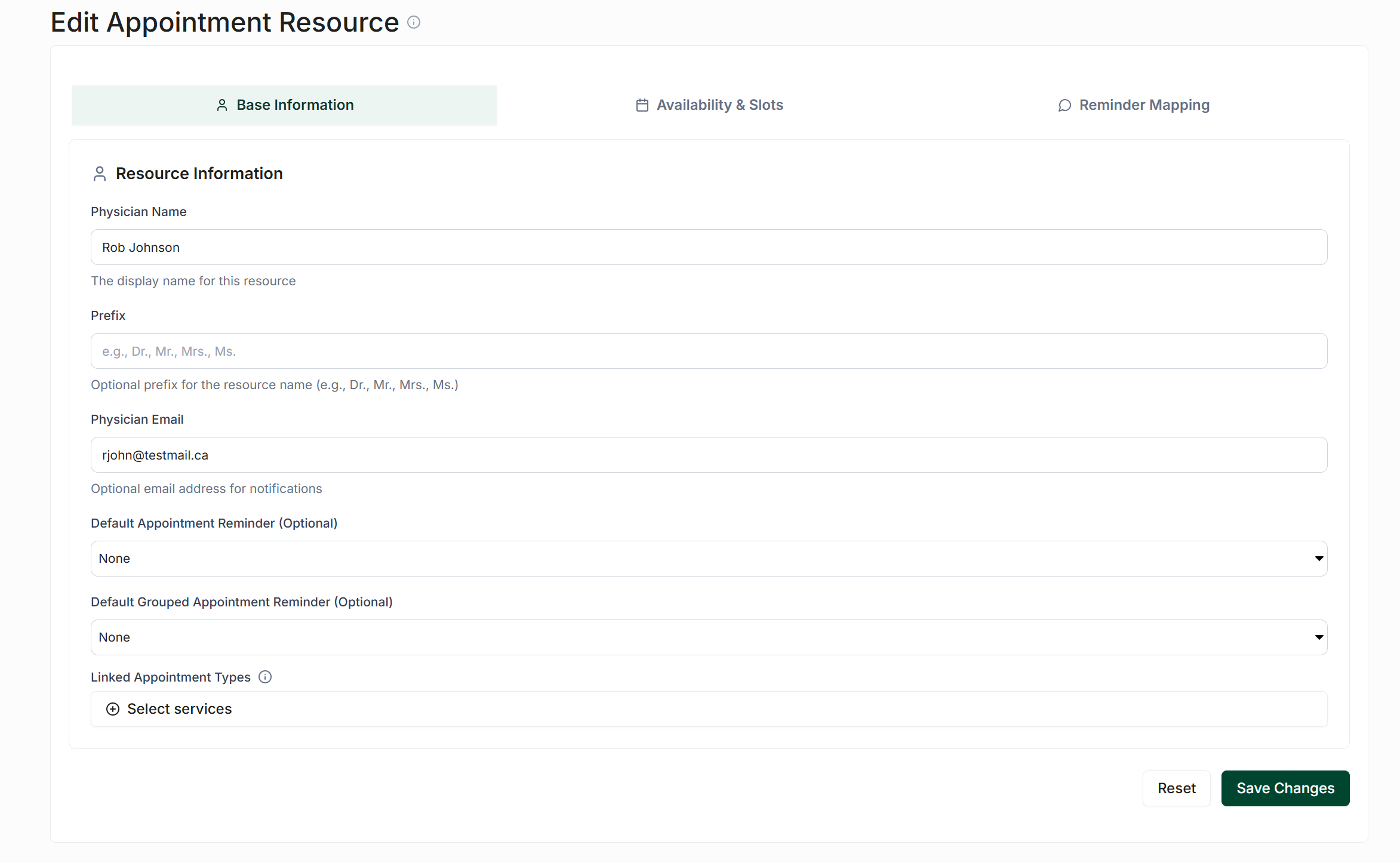
To edit the information of a newly created physician, locate them in the "All Physicians" tab and click the pencil icon to initiate editing. Here, you can:
Enter a prefix for the physician (e.g., Dr., Mr., Mrs., etc.).
Optionally select a default appointment reminder and a default grouped appointment reminder.
Choose a list of linked services for the physician. This step is crucial, as these services represent the appointment types for which the physician will be available. If not configured, appointments cannot be assigned to the physician.
Availability & Slots
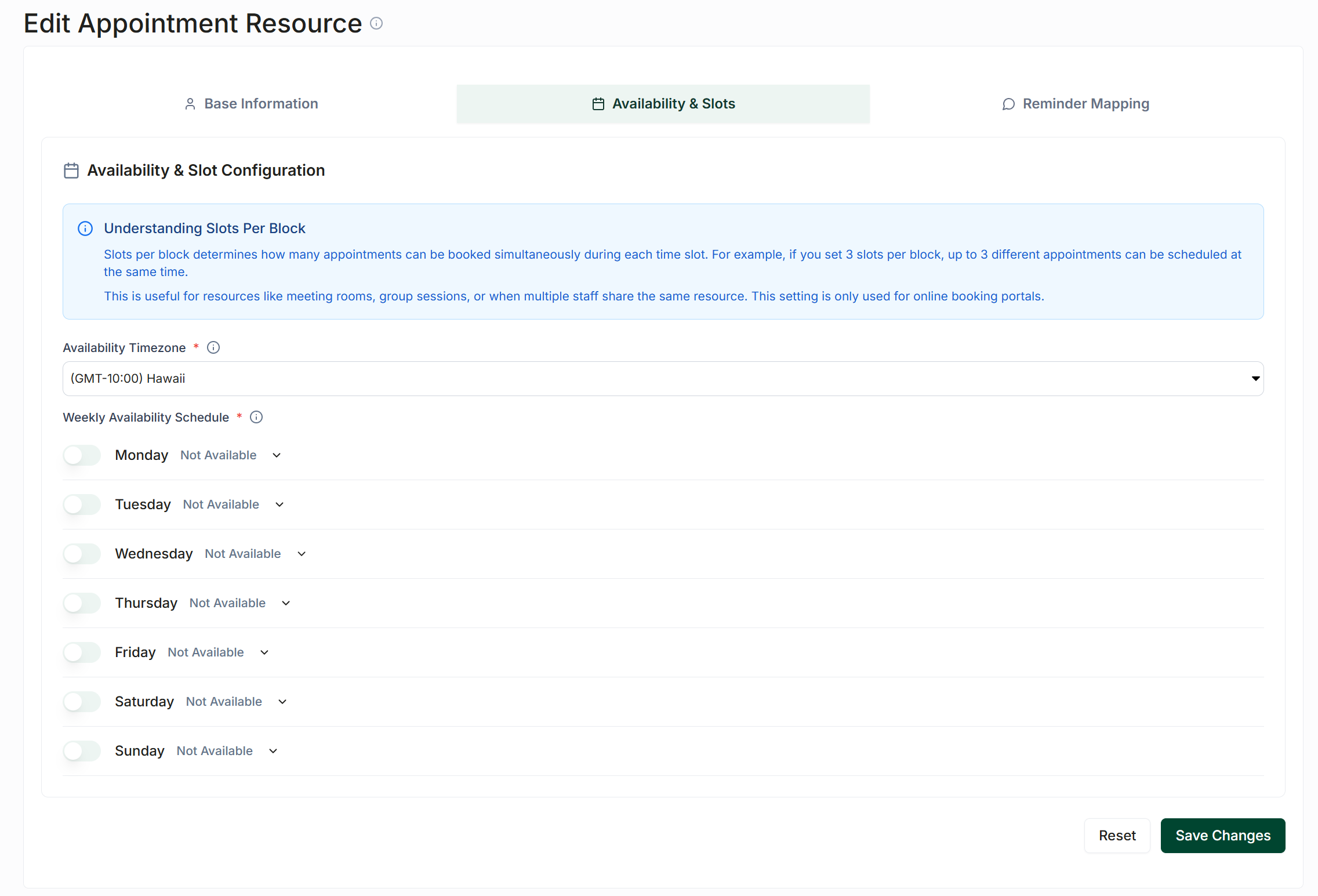
After entering the base information, proceed to the "Availability & Slots" tab to set the physician's time zone and working hours. This section is straightforward and includes the following:
The availability time zone, which indicates the standard time zone in which the physician will be available.
The "Weekly Availability Schedule," where you can specify the hours the physician is available. You can set hours for each day individually or copy hours from one day to others. Additionally, you can select the number of concurrent appointments that can be booked for any given time slot.
Once you have completed entering the physician's time zone and hours, click the "Save Changes" button located at the bottom right of the screen.
Reminder Mapping
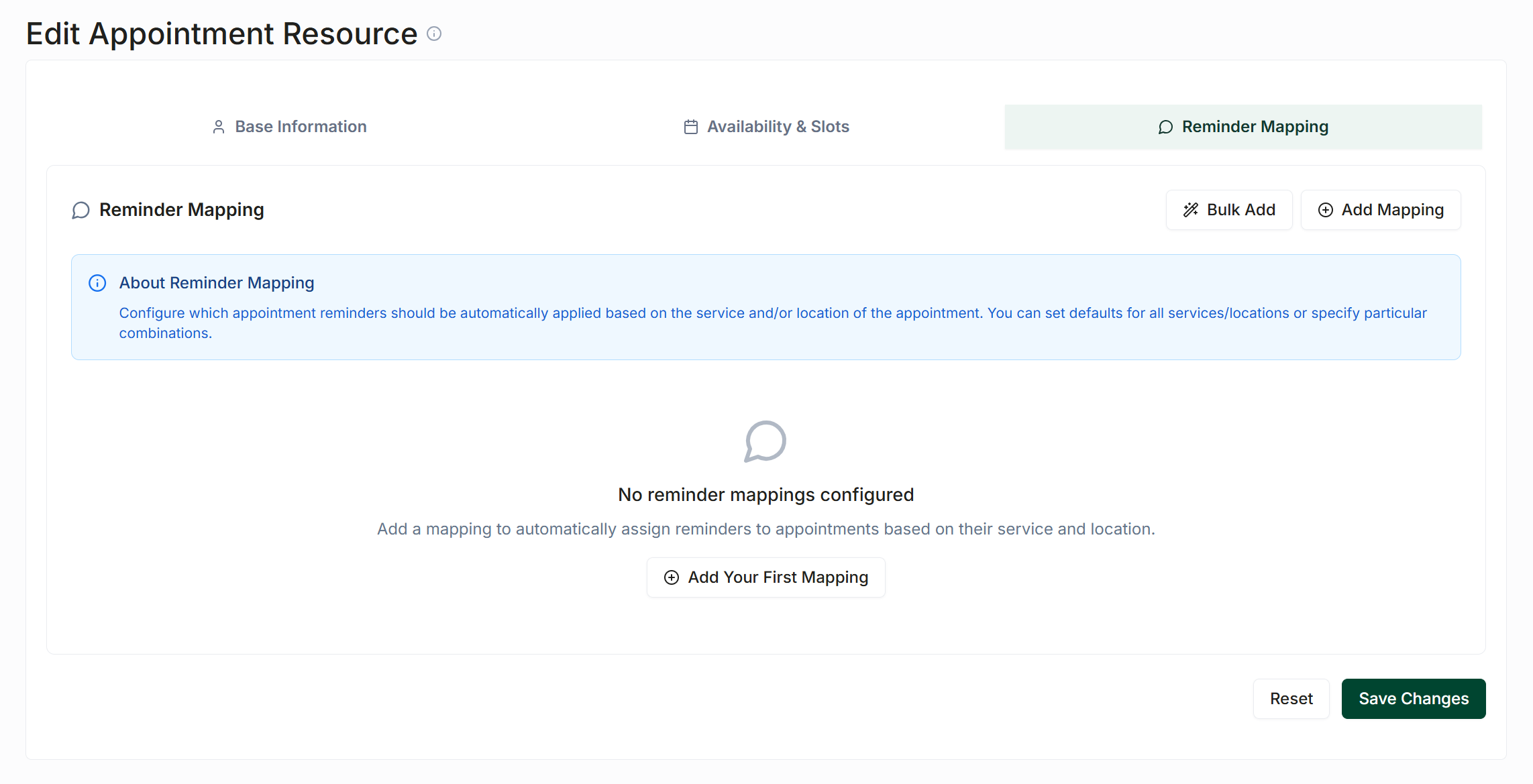
The Reminder Mapping section allows you to set appointment reminder mappings for the physician. These mappings will be automatically applied based on the service and location of an appointment assigned to the physician. You can assign a single mapping or multiple mappings at once.