Appointment Locations
This document provides a comprehensive guide on how to create and edit appointment locations within the Carrick Health system. Appointment locations are essential for organizing and managing assigned appointments effectively.
Creating Appointment Locations
To create an appointment location, follow these steps:
Navigate to the "Appointments" screen.
Click the gear icon located at the top of the page.
Select "Configure Appointment Settings" to access the "Appointment Configuration" screen.
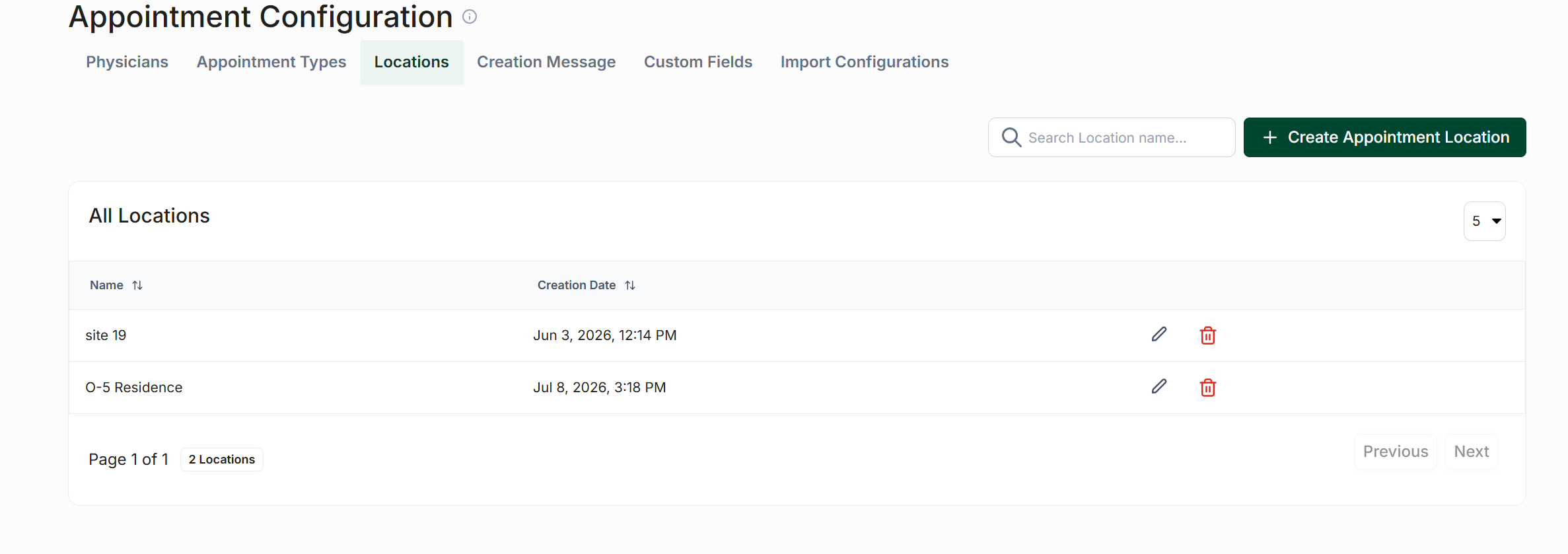
On the top of the page, navigate to "Locations" and then click "Create Appointment Location" located at the top right of the screen.
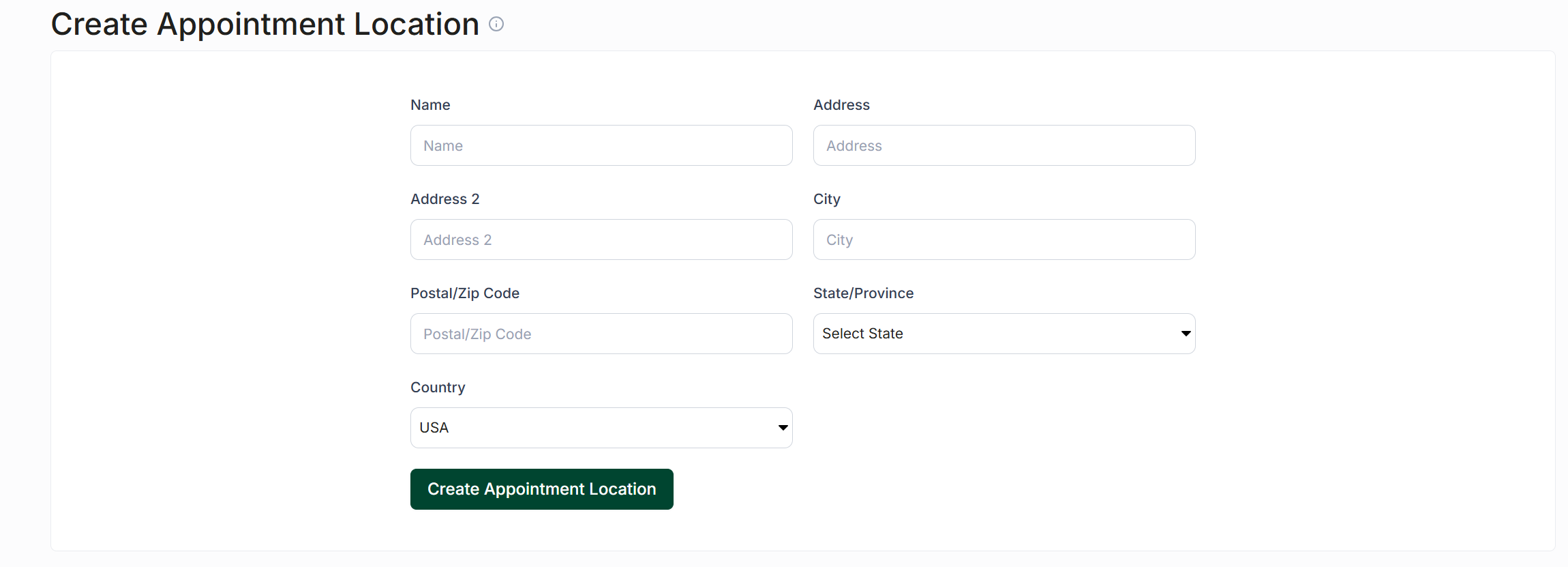
Fill in the required fields, including the name, address, optional second address, city, postal/zip code, state/province, and country for your location.
Press "Create Appointment Location" to save your newly created location.
Editing Appointment Locations
To edit an existing appointment location, follow these steps:
Locate your newly created appointment location in the "All Locations" tab.
Click the pencil icon to edit the selected location.
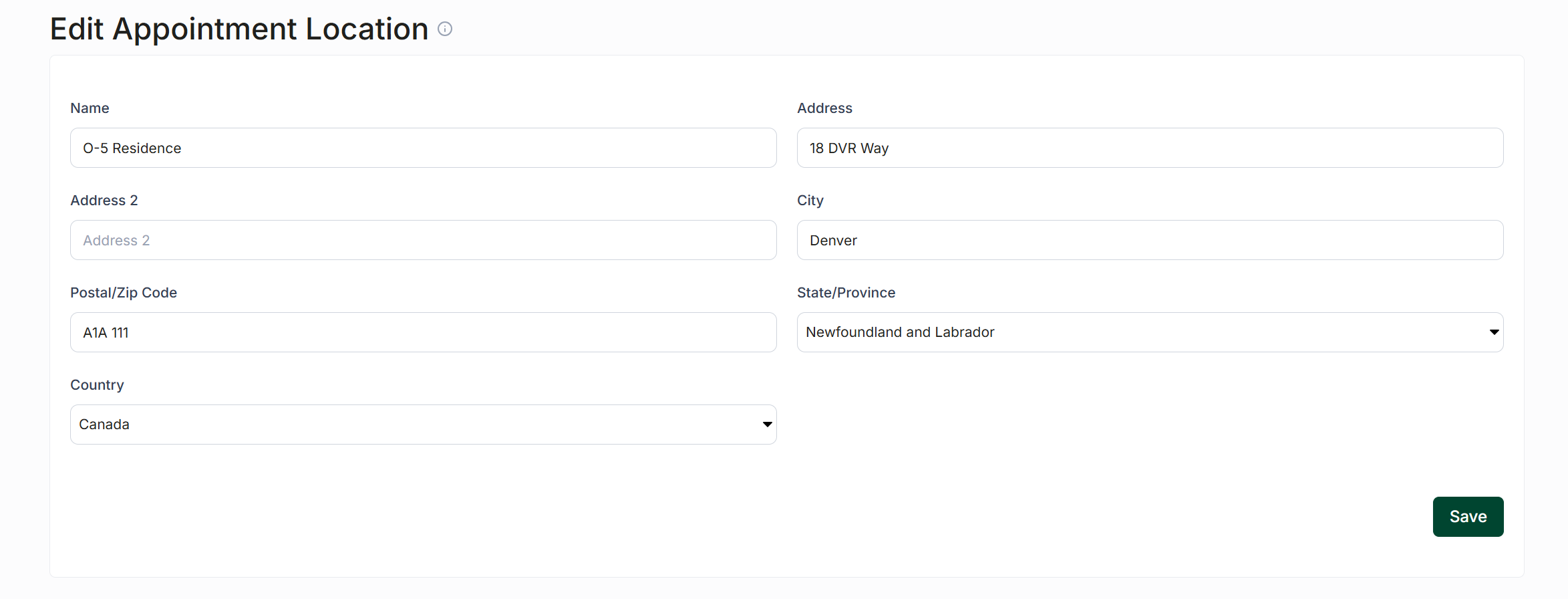
You can modify the name, address, optional second address, city, postal/zip code, state/province, and country as needed.
Press "Save" to apply your changes and return to the previous screen.