
Importing Broadcasts
This document provides a comprehensive guide on how to import existing broadcasts into the Carrick Health system using a CSV file. By following the steps outlined below, users can efficiently manage their broadcast details and ensure a seamless communication process.
Importing Broadcasts
In addition to creating broadcasts manually, users have the option to import details of their existing broadcasts. To initiate this process, follow the steps outlined below:
Navigate to the Broadcasts Tab
Begin by navigating to the broadcasts tab located in the left-hand sidebar of the interface. Once there, click on the "Import CSV" option.

Upload Your CSV File
Upon reaching the "Import Broadcast" screen, locate the upload button situated in the middle of the screen. Click this button to select and upload your CSV file.
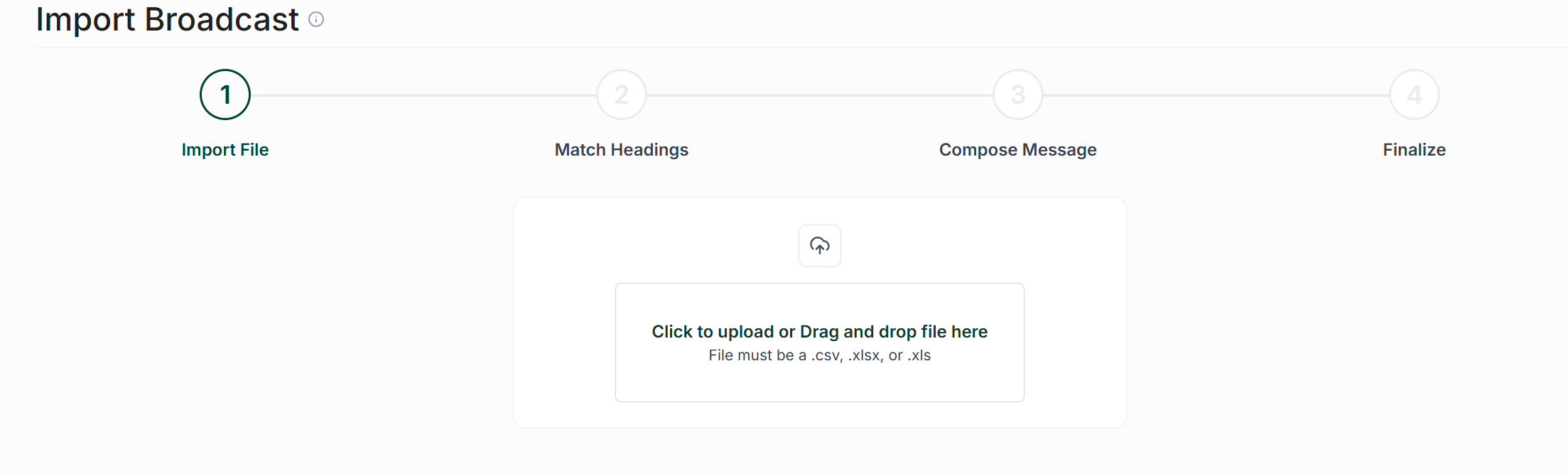
Ensure Proper CSV Formatting
Your CSV file must include the following columns to ensure a successful import:
First Name
Last Name
Full Name (only if first and last name are not already provided)
Phone Number
If any of these fields are not matched during the import process, you will have the option to manually match them after the CSV is imported.
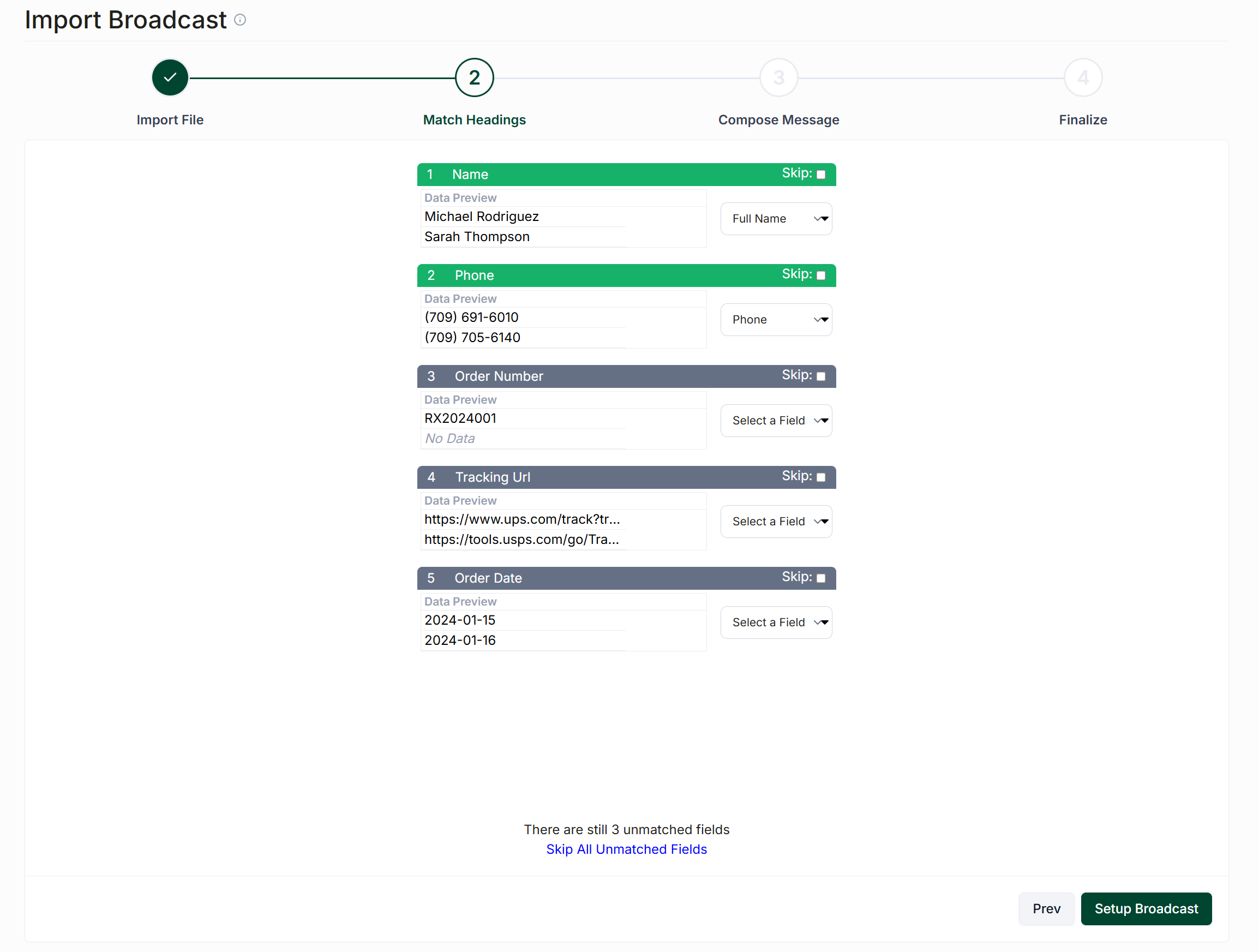
Finalize Your Broadcast
Next, enter a name for your broadcast and compose the message that will be sent. After completing these fields, click on the "Finalize Broadcast" button to proceed to the final screen.
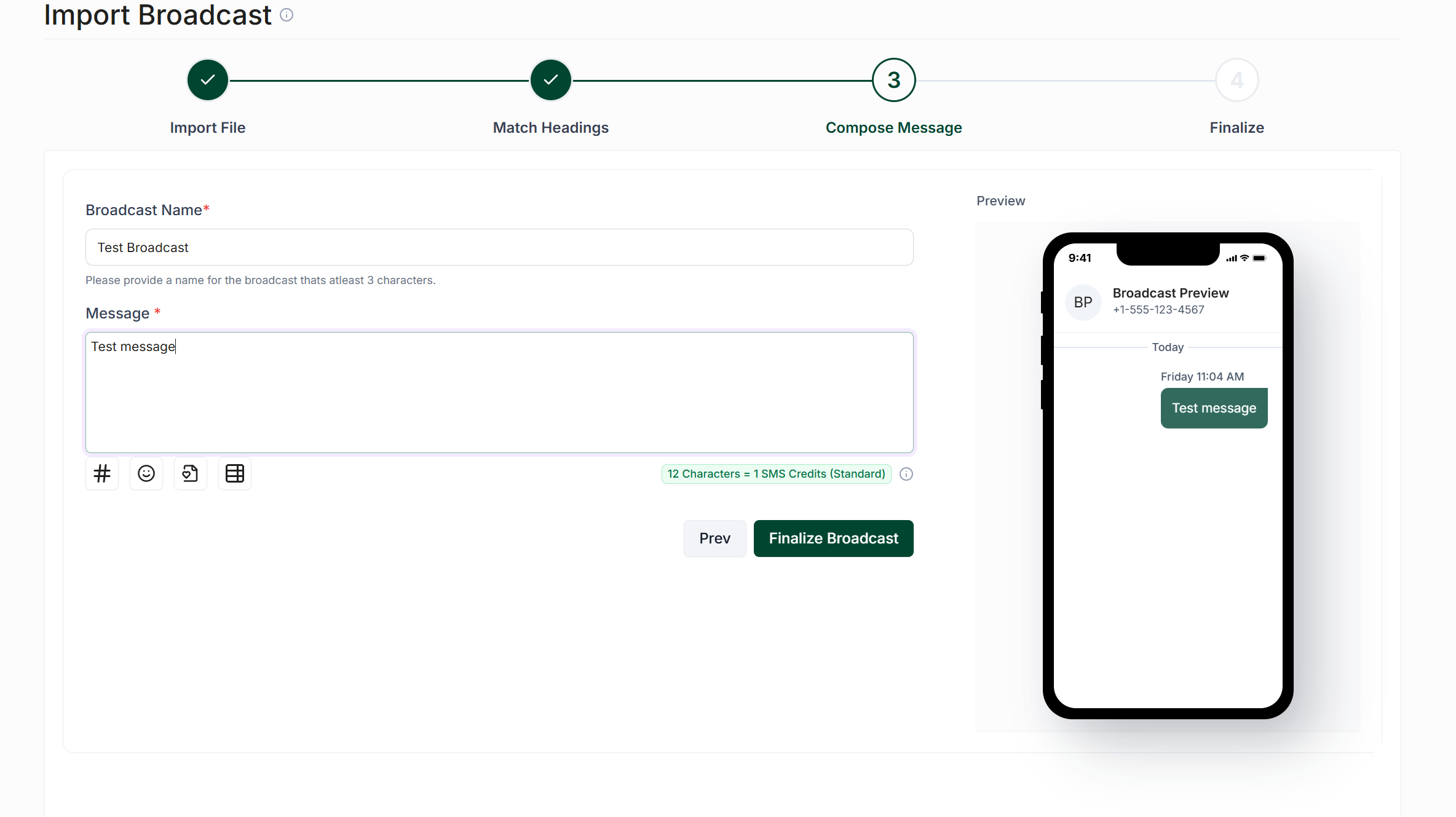
Review and Finish
The final screen will display a list of recipients who will receive the broadcast. You will also have the option to:
Auto-resolve the conversation when the broadcast is sent.
Exclude contacts with failed message deliveries.
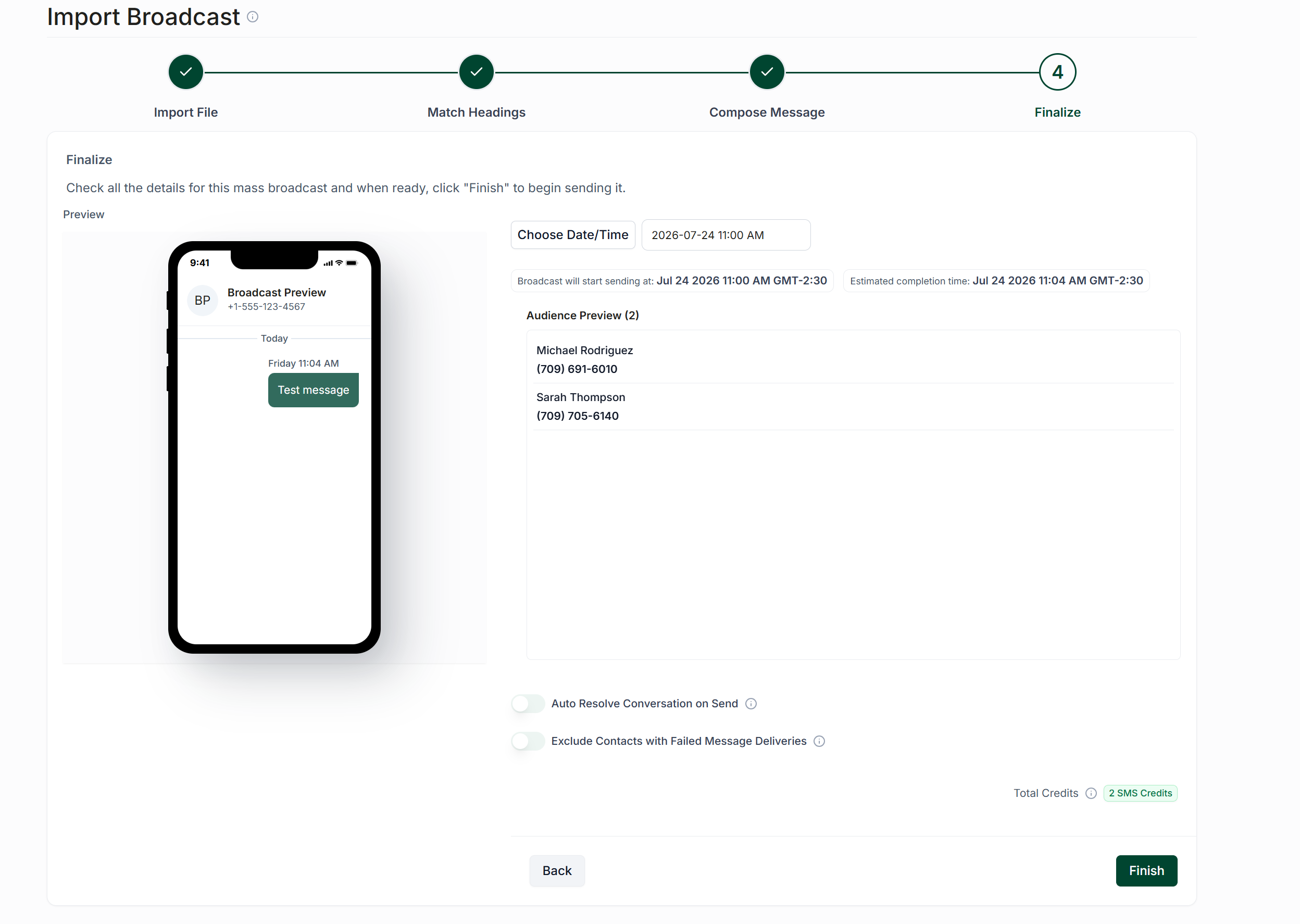
Once you have reviewed the details, click on the "Finish" button to finalize your imported broadcast.