Forms
Forms are essential tools for collecting additional information from patients and contacts at Carrick Health. This document outlines the process for creating and editing forms within our system, ensuring that you can efficiently gather the necessary data.
Creating Forms
To create a new form, follow these steps:
Navigate to the Workflows tab located at the bottom of the left-hand sidebar.
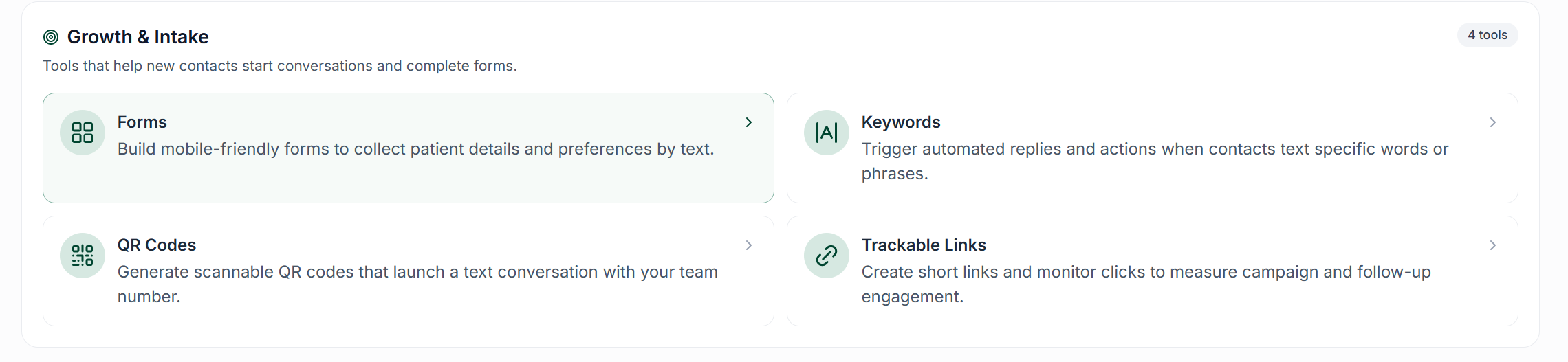
Scroll down to the Growth & Intake section and click on Forms.
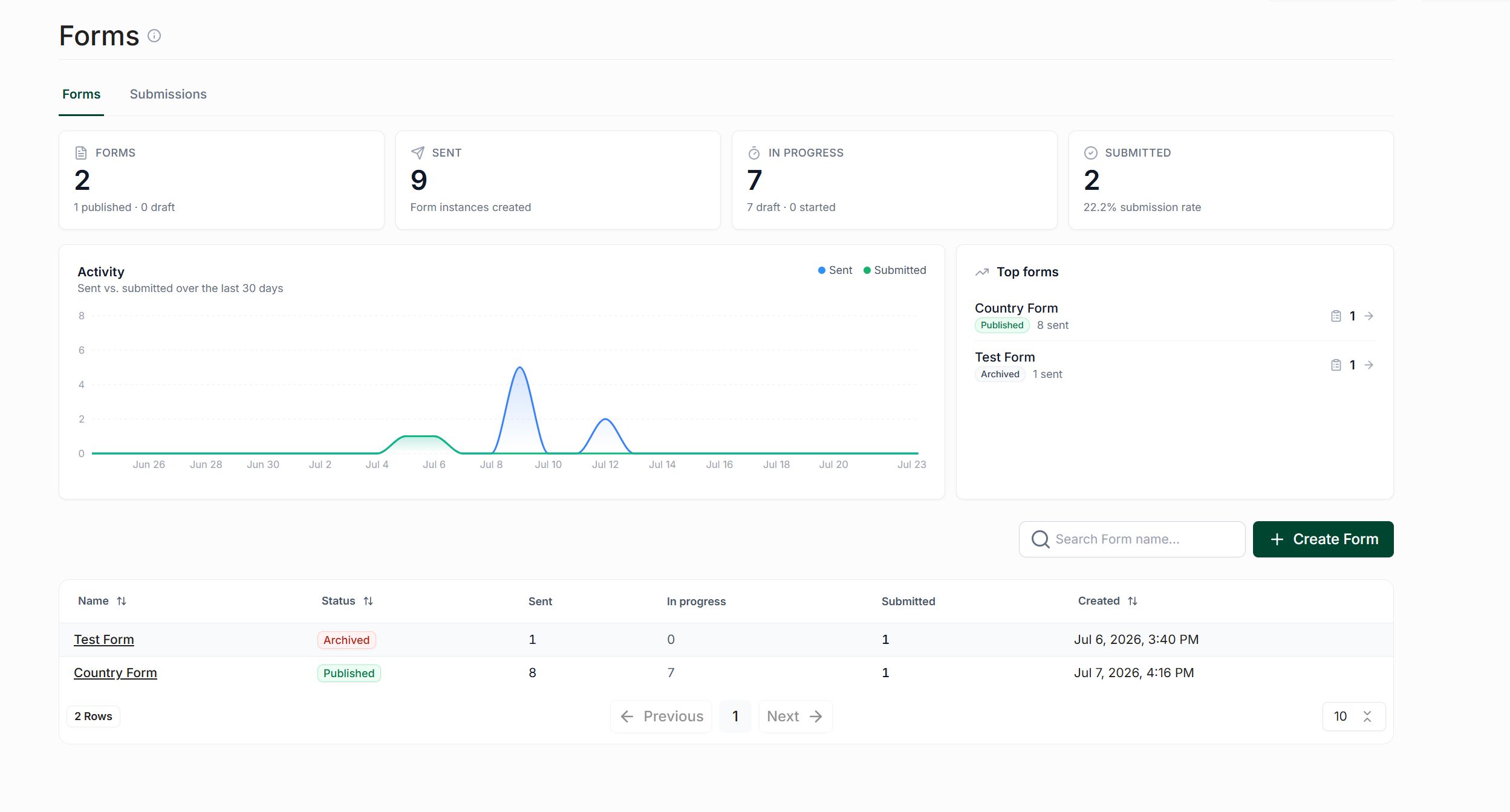
This action will take you to the initial form screen. From here, navigate to the bottom right corner and click on Create Form to access the Form Builder screen.
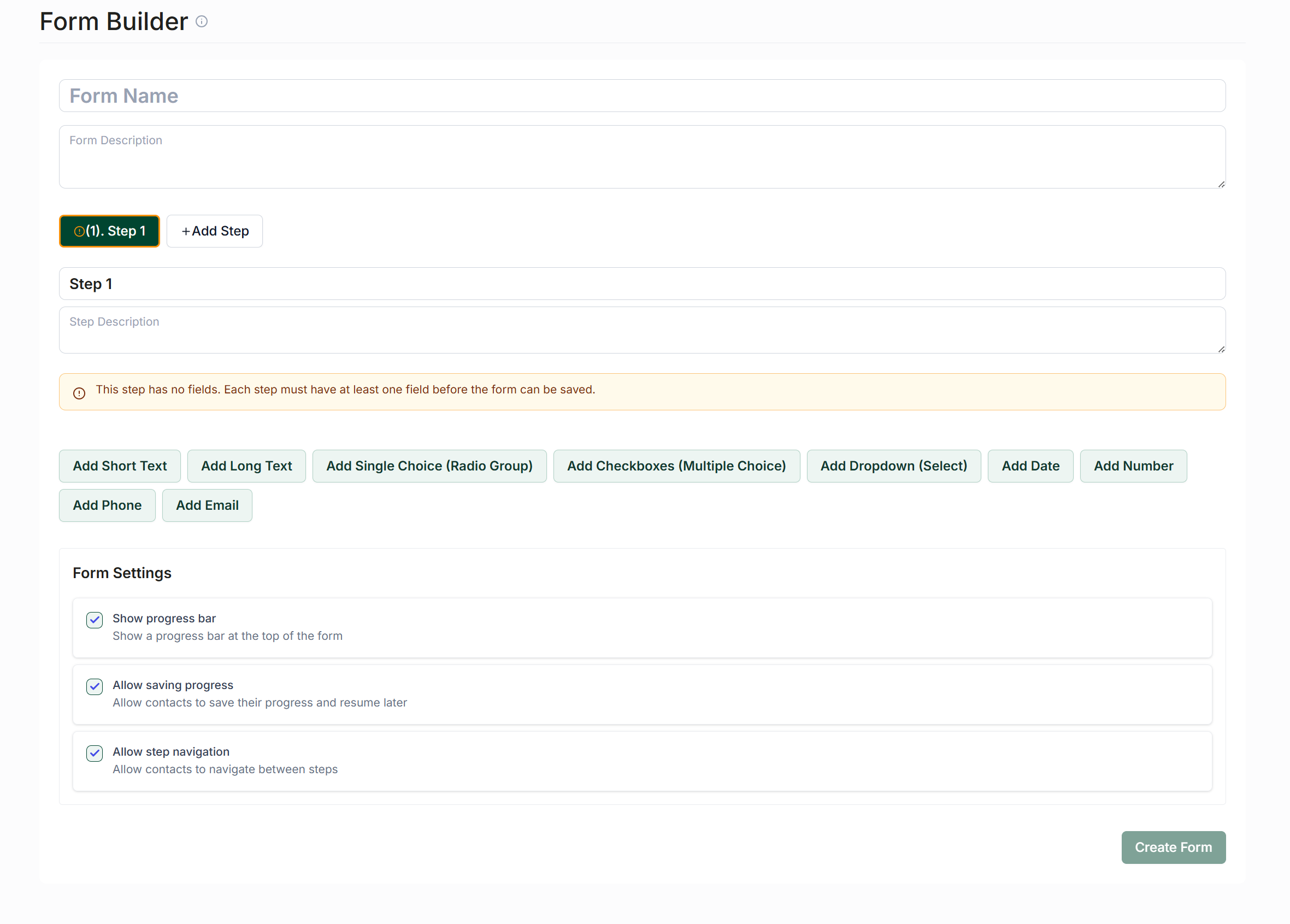
In the Form Builder, you will need to:
Enter a name and description for the form.
Provide a description for each step of the form.
Select a field type for your step from the following options:
Add Short Text
Add Long Text
Add Single Choice (Radio Group)
Add Checkboxes (Multiple Choice)
Add Dropdown (Select)
Add Date
Add Number
Add Phone
Add Email
Additionally, you can configure the following options for your form:
Enable a progress bar to show users their completion status.
Allow saving progress, enabling patients to exit and return to the form while retaining their input.
Permit contacts to navigate freely between the steps of the form.
Once you have entered all the necessary information, you can choose to add extra steps or proceed to the bottom right of the page and click Create Form.
Editing Forms
To edit an existing form, follow these steps:
Scroll down to the bottom of the initial form screen to locate your desired form.
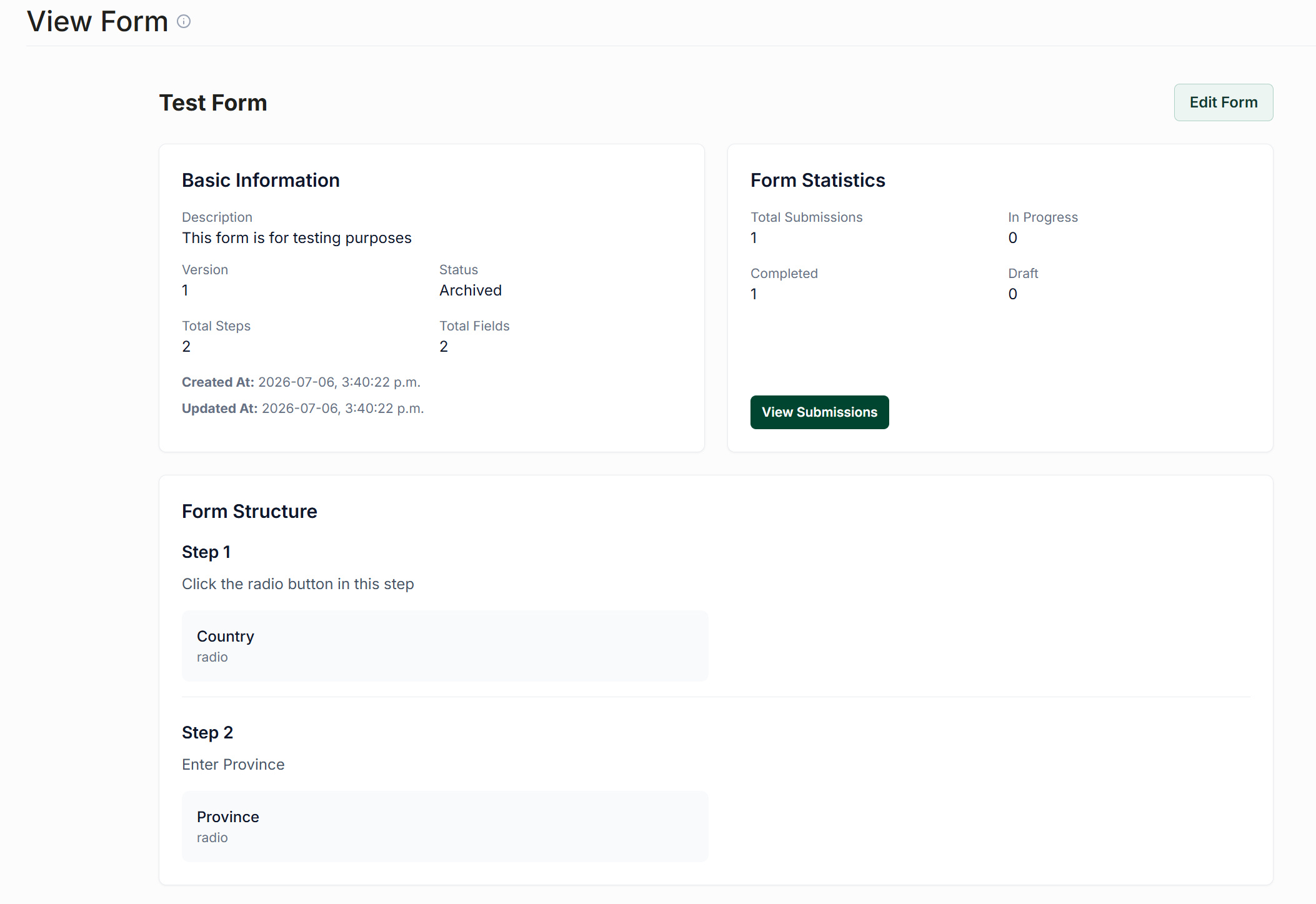
Click on the form to access its options, where you can:
Archive the form to disable it.
View any submissions associated with the form.
Edit the existing details of the form.
The edit form screen is identical to the creation screen. After making your changes, scroll to the bottom right and click Save Form to apply your updates.