
Creating AI Agents
This document provides a comprehensive guide on how to create and configure AI Agents at Carrick Health. We offer two types of AI Agents: SMS Agents and Voice Agents. The choice of which agent to create will depend on the specific needs of your clinic.
Creating an SMS Agent
To create an SMS Agent, follow these steps:
In the left-hand sidebar, navigate to the Workflows tab.
Scroll to the bottom and select Agents.
Click the upper button for Create SMS Agent.
Your SMS Agent will require the following information:
A name for the agent.
Your clinic's name.
Optional notes regarding the agent's intended use.
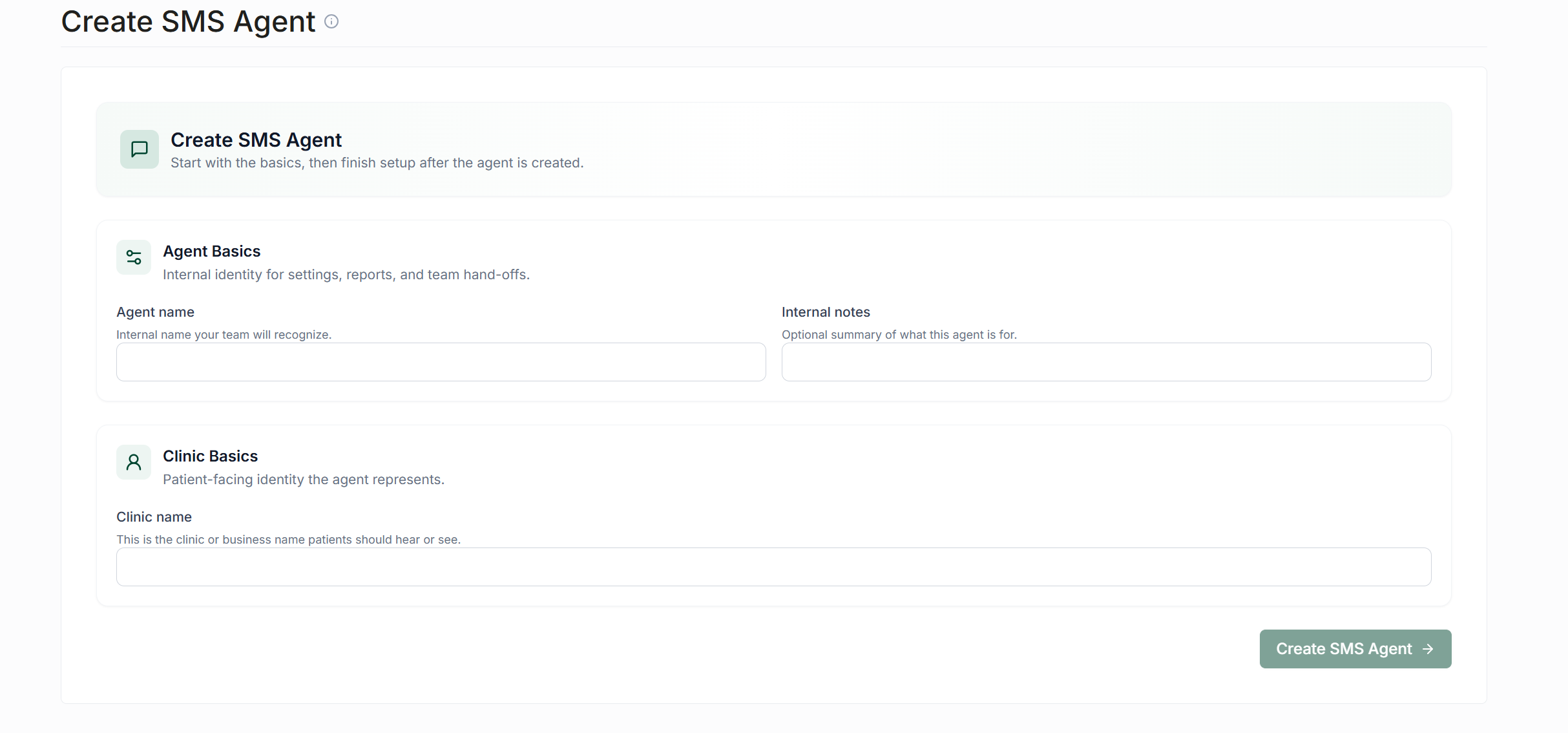
Once you have entered this information, click Create SMS Agent in the bottom right corner.
Creating a Voice Agent
To create a Voice Agent, the process is similar to that of creating an SMS Agent:
Navigate to the Workflows tab in the left-hand sidebar.
Select Agents.
Click Create Voice Agent.
A Voice Agent requires the following information:
A name for the agent.
Your clinic's name.
Optional notes regarding the agent's purposes.
An opening message that callers will hear before they can ask the agent any questions. For example: Thank you for calling the ACME Clinic. If this is an emergency, please hang up and call 911, or go to your nearest emergency clinic. Otherwise, our AI agent is ready to assist you with any questions you may have.
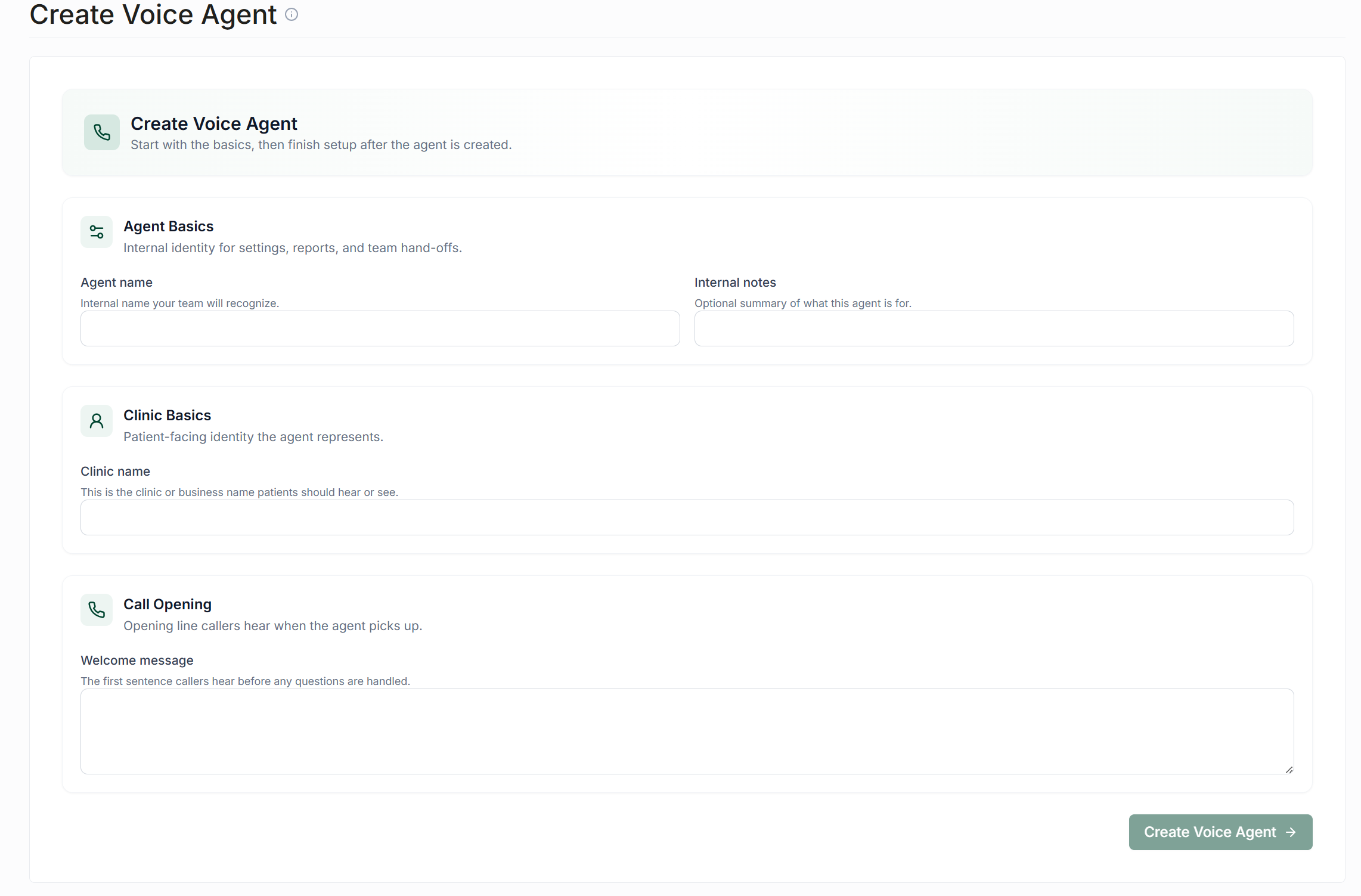
After entering this information, click Create Voice Agent in the bottom right corner.
Additional Resources
For further information on how to configure and maintain your SMS and Voice Agents, please refer to the following documents:
Voice: Configuring Voice Agents