
Configuring Voice Agents
This document provides a comprehensive guide on configuring a voice agent, highlighting the key differences from configuring an SMS agent. For further reference, please consult the related article on SMS agent configuration.
General Configuration
Call Opening
The call opening is the introductory text that is spoken when creating a voice agent. This message is delivered before the user can interact with the agent. If the "Require caller name before contact actions" option is enabled, the caller must provide their name before the agent can save notes, schedule appointments, or perform any other actions linked to the contact. It is advisable to disable this option only if your call flow collects the caller's name through other means.
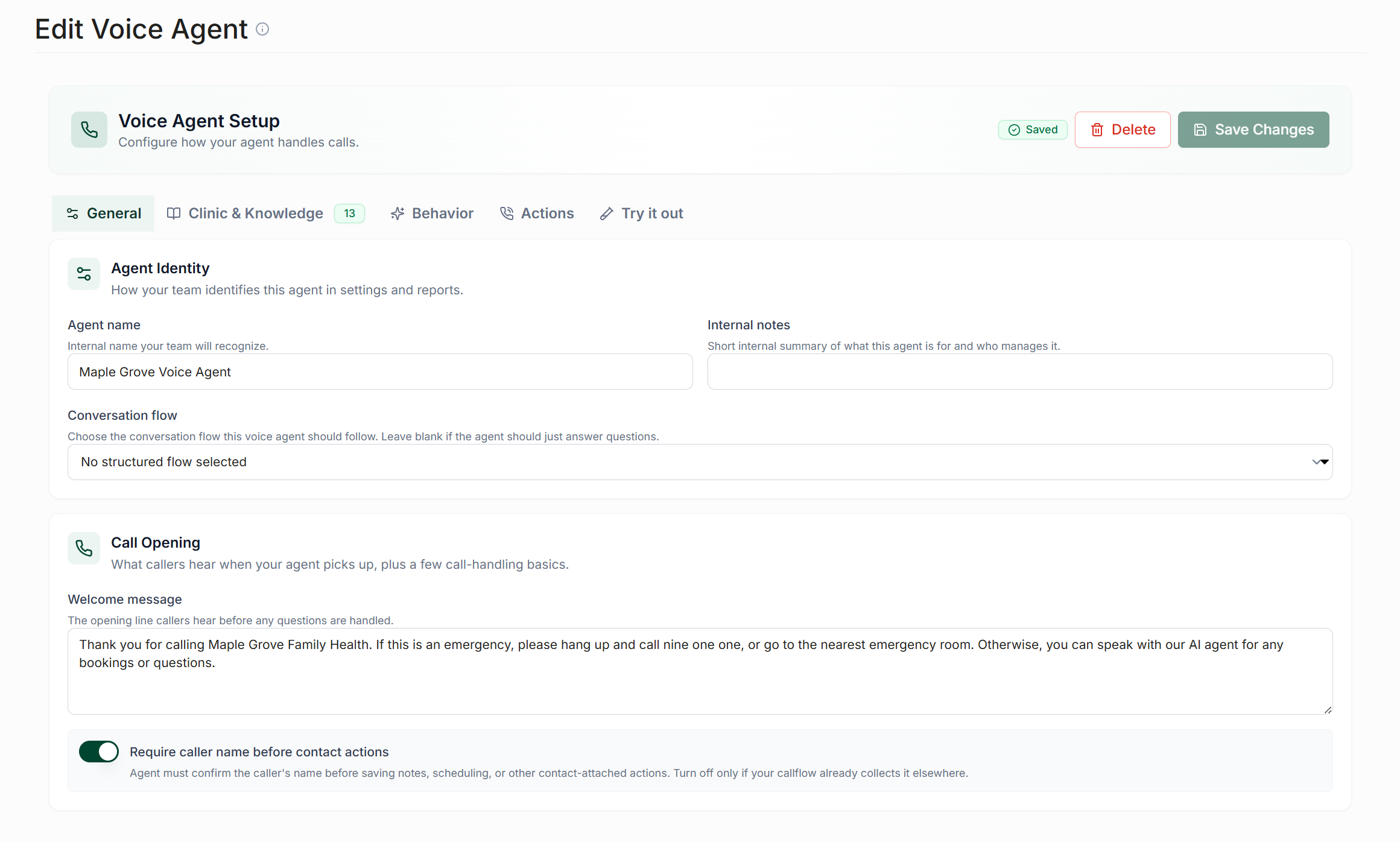
Clinic & Knowledge Settings
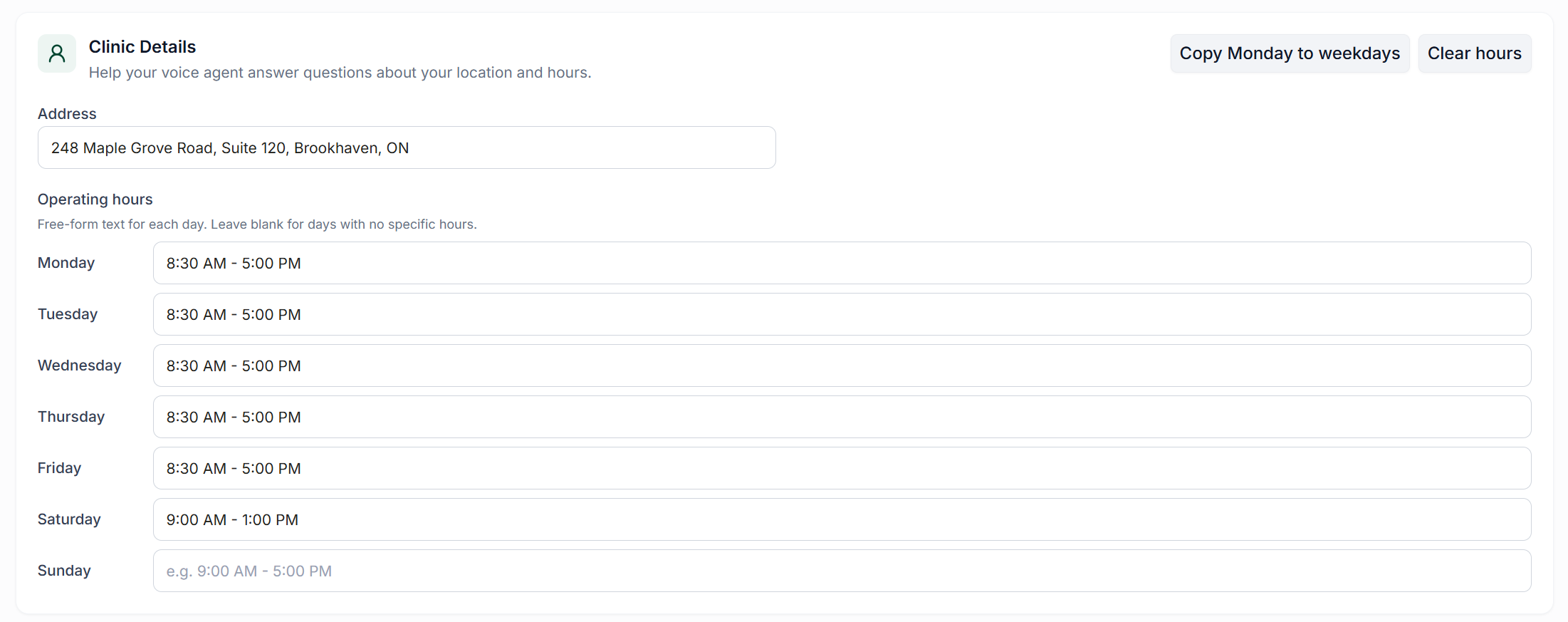
Clinic Details
In this section, you can specify the hours during which your agent is authorized to take calls. Typically, these hours align with your clinic's operational hours.
Clinic & Knowledge
The "Clinic & Knowledge" tab is where you will upload files to your agent's knowledge base, which it will utilize to answer questions from your contacts.
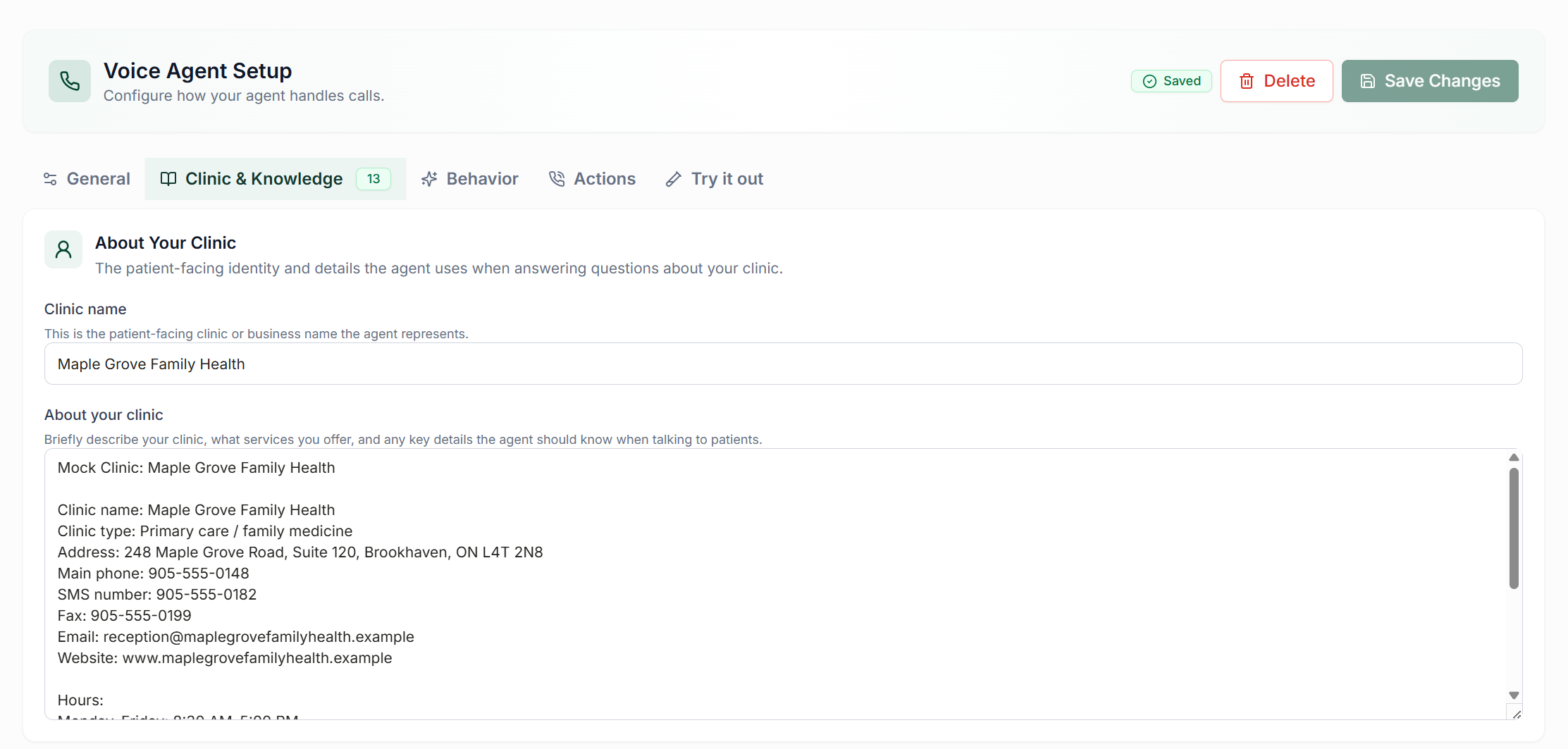
About Your Clinic
This area contains the name of your clinic and its basic information, including the clinic's name, address, and contact information.
Knowledge Base
This section allows you to determine how your agent retrieves information and what actions it should take when it is uncertain about how to respond to a question. It is generally recommended that every agent has an enabled knowledge base, with the specific actions determined on a clinic-by-clinic basis.

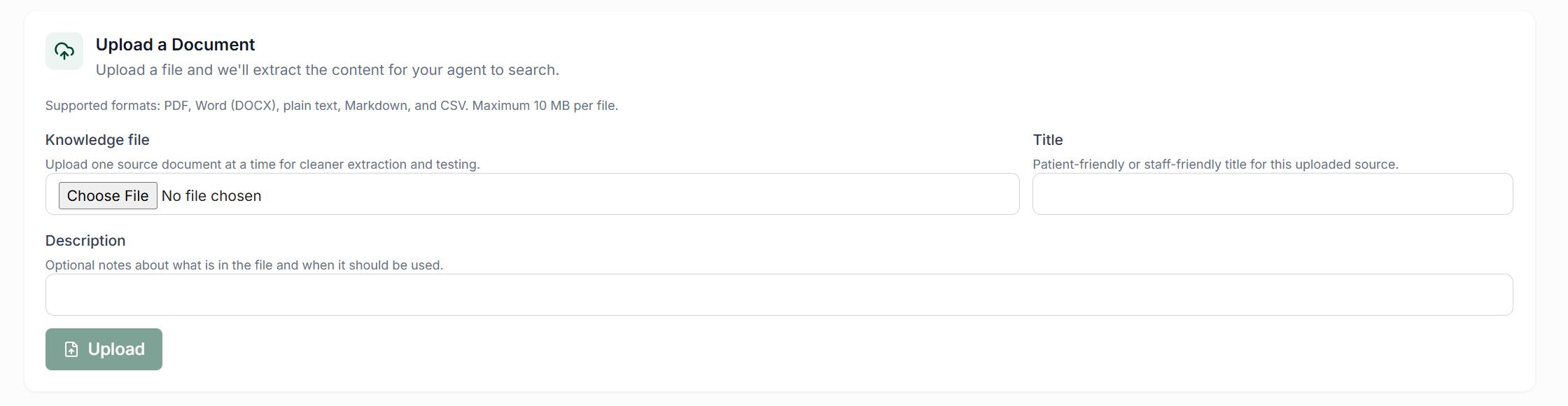
Upload a Document
To upload documents to an agent with an enabled knowledge base, click "Choose File" to select a file. Acceptable formats include PDF, Word (DOCX), plain text, Markdown, or CSV, with a maximum file size of 10 MB. Choose a title that is easily understandable for your users and optionally provide a short description of the file's contents. After entering this information, click "Upload" to send your file to the knowledge base.
Uploaded files should contain detailed information about your clinic, including hours of operation (including temporary closures), physician information, insurance and billing details, and answers to commonly asked questions.
Knowledge Sources
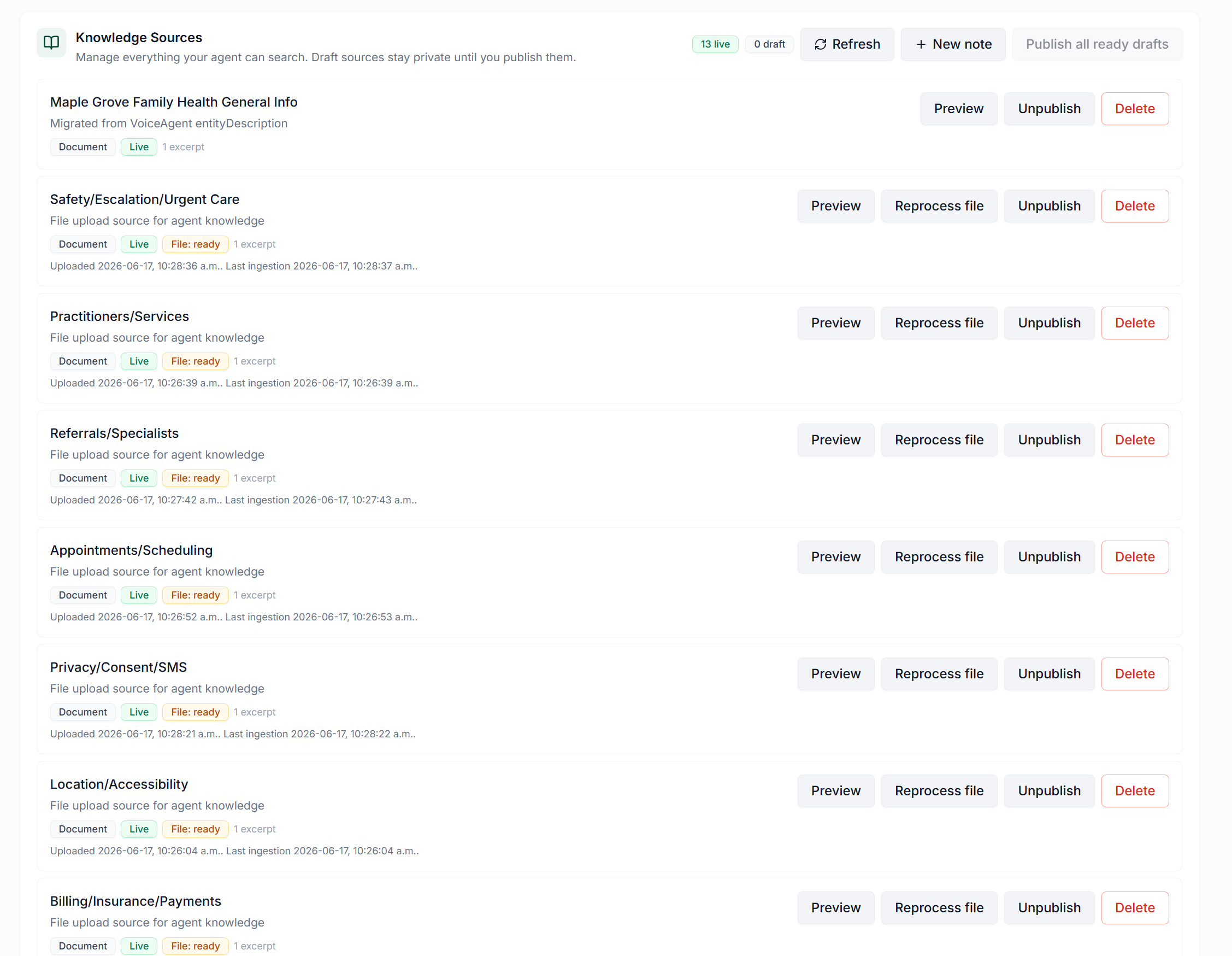
This section contains your uploaded documents. After a file is uploaded, it will take a moment to process before it is ready for publication. If the processing seems to be taking too long, click the "Refresh" button. Once processed, you can preview the contents of the file. If everything is satisfactory, click "Publish" to enable your agent to reference this document when responding to contacts.
Behavior Settings
Personality
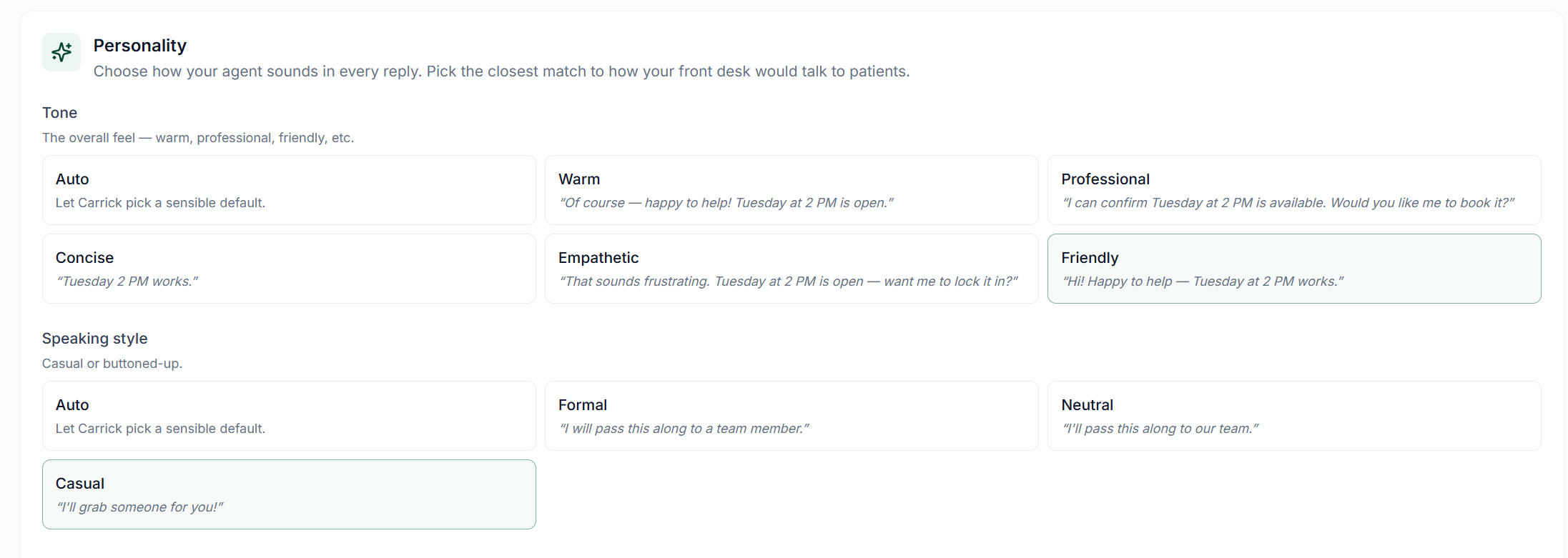
This setting allows you to choose the tone your agent will respond with when they are speaking with a patient.
Reply Length
This setting allows you to define the length of the agent's replies. It is recommended to keep this setting at "Auto," enabling Carrick to determine an appropriate length based on the context of the conversation.

Topics to Avoid
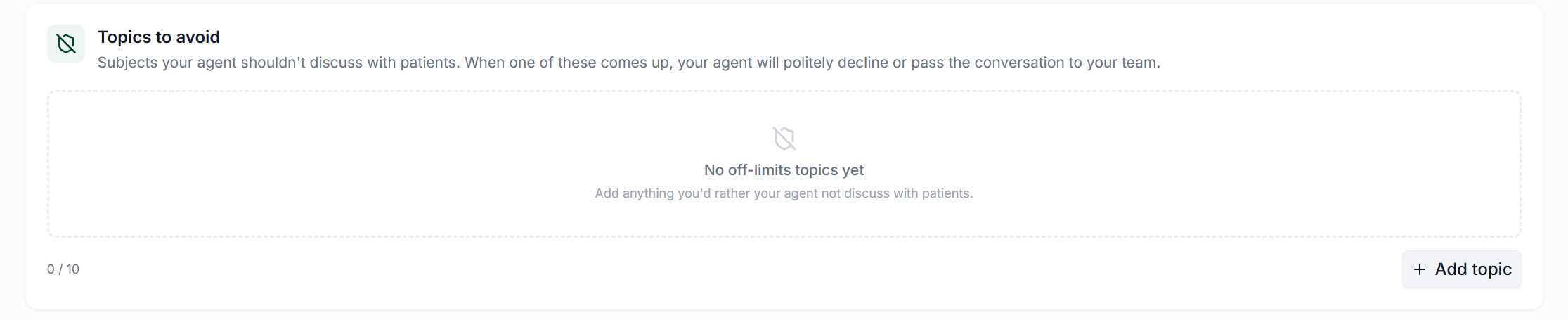
Here, you can specify any topics that your agent should avoid discussing, typically for safety or privacy reasons. Your agent can have up to 10 forbidden topics at any time, which may include detailed billing information, personal information about staff, and confidential medical information.
Hand Off to Your Team
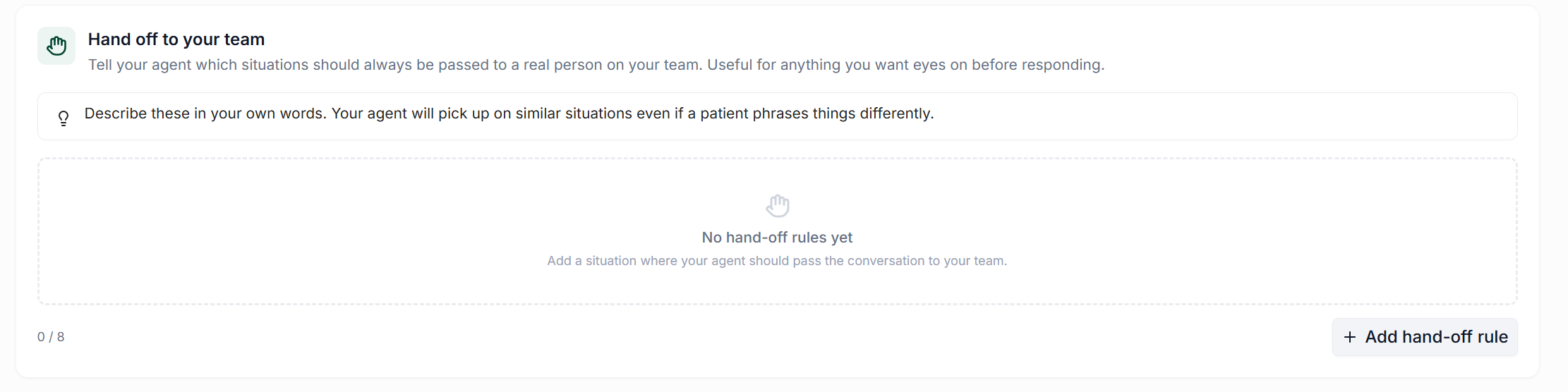
This section allows you to define situations in which your agent should always transfer a conversation to a staff member. Common scenarios include when a contact expresses significant frustration, discusses forbidden topics, or directly requests to speak with a team member.
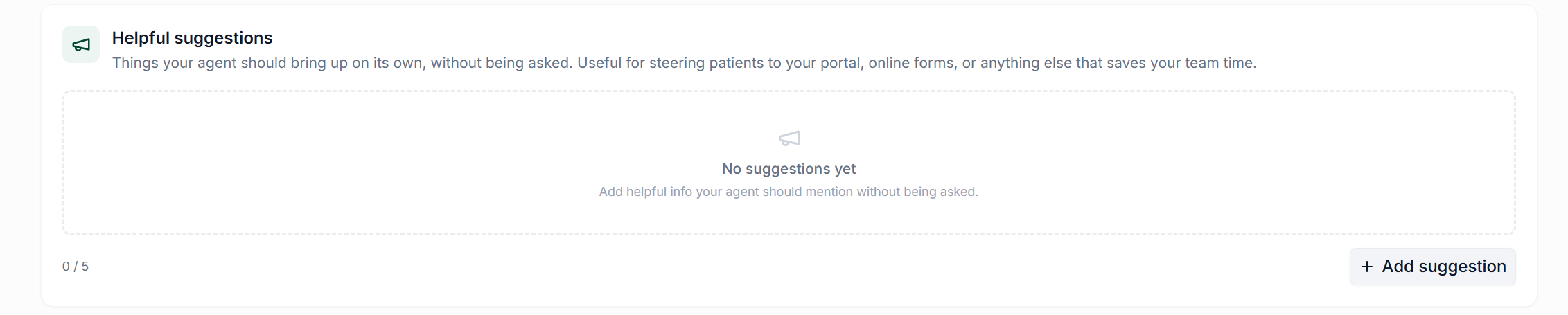
Helpful Suggestions
In this area, you can enter topics that your agent should proactively mention without being prompted. A common example would be providing links to direct contacts to your online portal and forms.
Anything Else
This section allows you to input information specific to your clinic, such as confirming a patient's preferred pharmacy before discussing prescriptions or avoiding promises of specific appointment times when they are not guaranteed.

Actions Configuration
Appointment Lookups
If enabled, this feature allows your agent to look up a contact's appointments without needing to transfer the conversation to a team member. You can set the maximum time window for the agent's search, specifying the metric (minutes, hours, days, weeks).

Appointment Booking
If enabled, your agent will be able to search for open slots with physicians and book appointments for contacts without needing to pass the conversation to a team member. Similar to appointment lookups, you will need to set a maximum time window for the agent's search and select which services and physicians your agent can utilize for booking appointments.

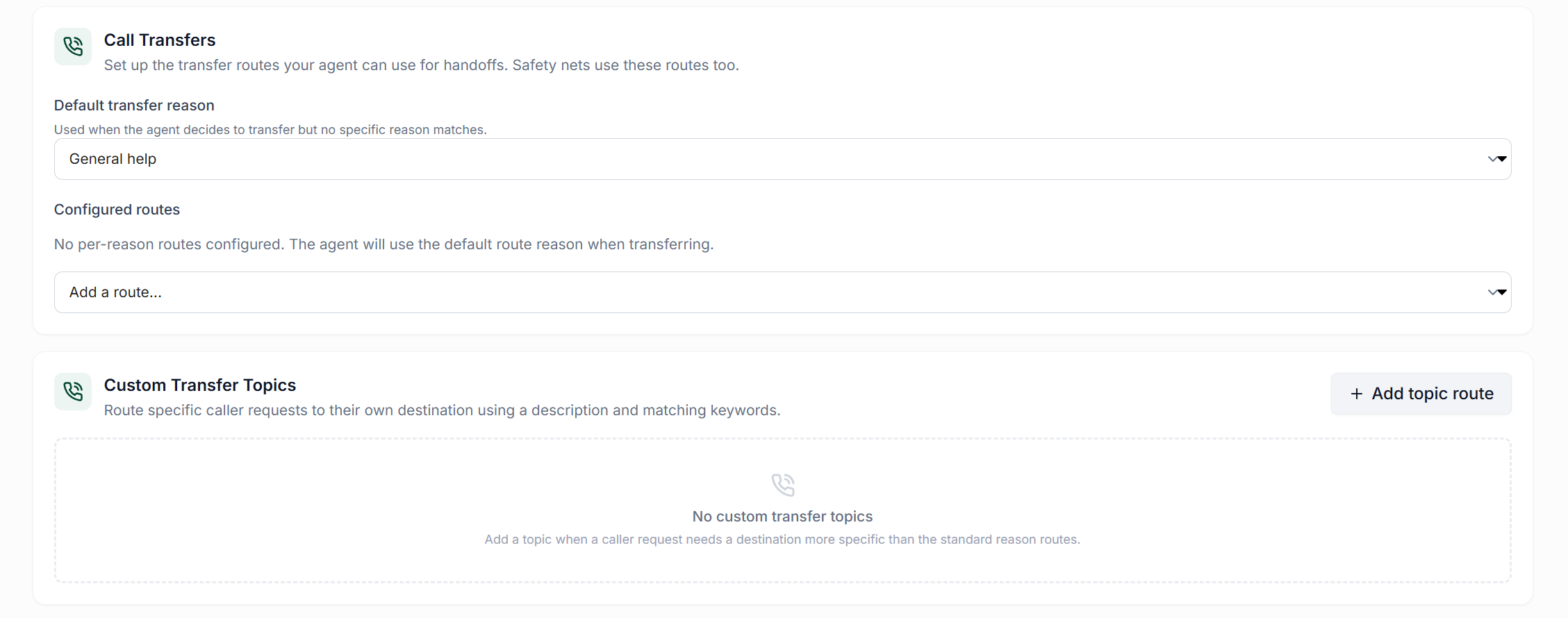
Call Transfers
In this section, you can establish transfer routes that your agent will utilize when handing off a conversation to a team member. You have the option to set a default transfer reason, which can include general help, scheduling, clinical, urgent, emergency, frustrated caller, or other. Additionally, you can configure the specific route the agent will follow when transferring calls.
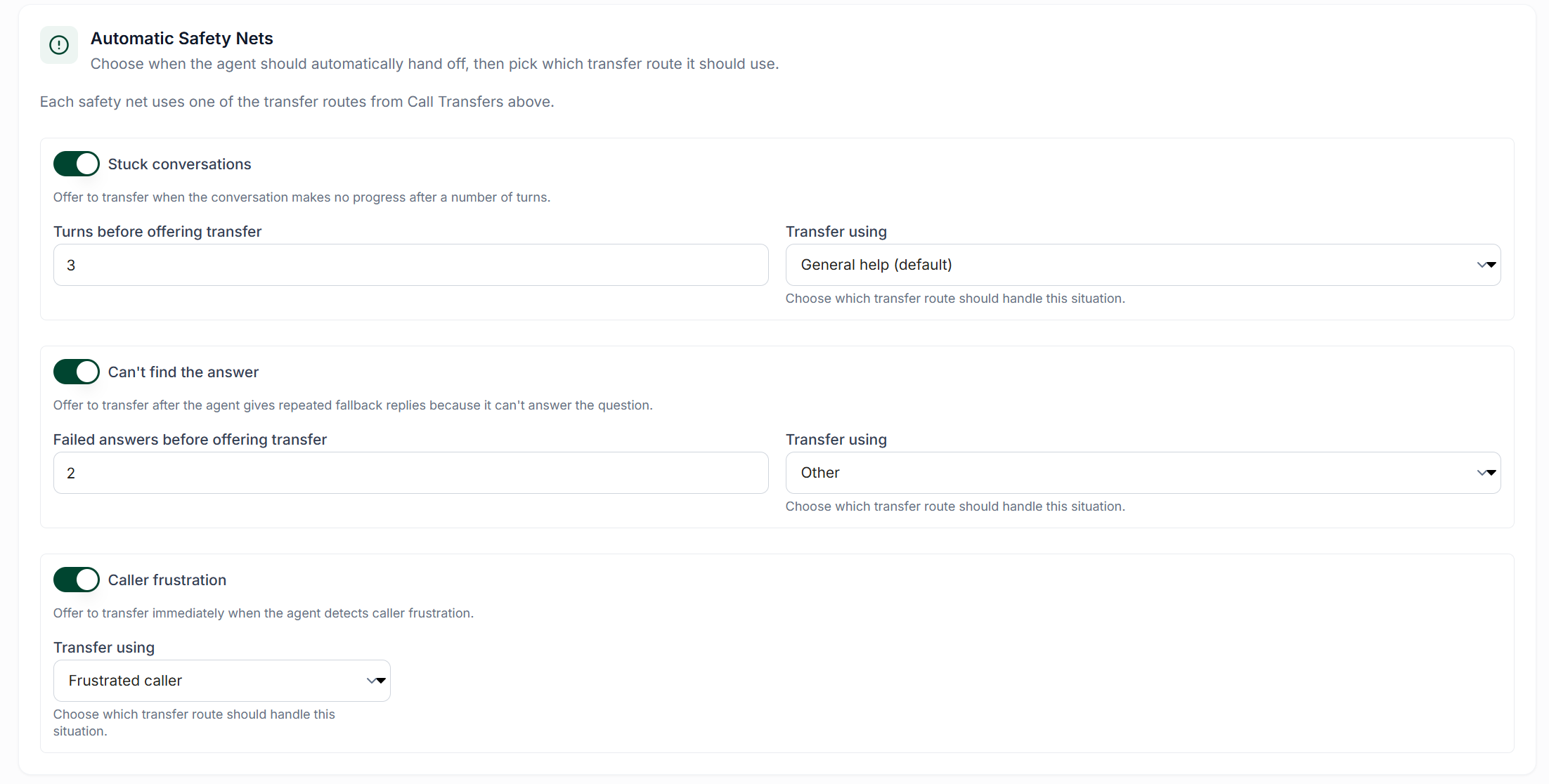
Automatic Safety Nets
This feature allows you to configure scenarios in which the agent should automatically transfer calls to a team member. The default options include "Stuck Conversations," "Caller Frustration," and "Can't Find The Answer." You can also specify the number of attempts the agent should make to resolve the issue before transferring the call, as well as the route the agent will use for the transfer.
Additional Resources
For information on how to assign your voice agent to accept calls, please refer to the following article: Assigning Voice Agents To An Inbound Call Policy.