
Incoming/Outbound Calling
This document provides a comprehensive guide on how to make and receive calls using the Carrick Health application. It outlines the necessary steps to connect your soft phone and the procedures for initiating and handling calls within the app.
Connecting Soft Phones
Before users can make and receive calls, it is essential to connect their phone within the Carrick app. This process can be completed from any screen within the application.
To connect your phone, follow these steps:
Navigate to the top right corner of the page and click the red "Offline" button located near your username.
Select "Connect Phone" from the dropdown menu. This action will change your red "Offline" button to a green "Online" button.
Click the new "Online" button and then select "Audio Settings." Here, you can choose your microphone, speaker, and ringtone. Your phone is now fully connected.

Making & Receiving Calls
Once your phone is connected, you can initiate calls from any conversation with your contacts.
To make a call, follow these steps:
Navigate to the "Conversations" screen and select an open conversation.
In the top right corner of the conversation, click the phone icon. A popup will appear where you can select "Call."
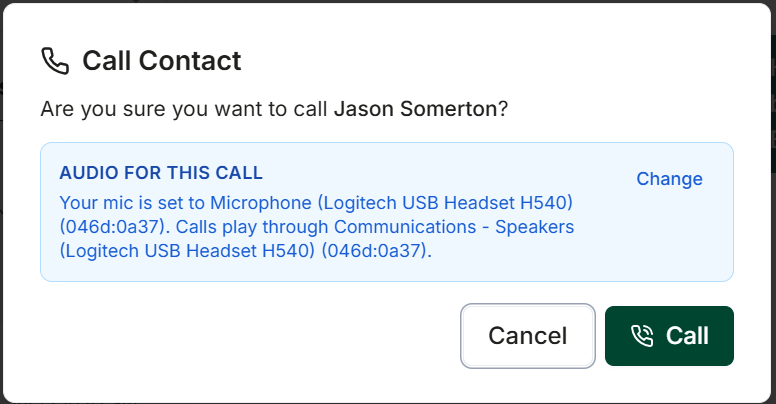
If "App Calling" is enabled as an inbound call policy, users will be able to receive calls from patients in addition to making them. For more information on enabling app calling, please refer to the Routing Rules.
When a call comes in from a contact, as long as your in-app phone is connected, you will have the option to either answer or decline the call from the "Online" button in the top right corner of the screen.