
Sending Messages
This document outlines the various communication features available for effective interaction with your contacts at Carrick Health. From initiating two-way conversations to utilizing automated responses, these tools are designed to enhance your communication experience.
Two-Way Conversations
Engage in meaningful dialogue by sending and receiving messages in a conversational manner. This feature allows for back-and-forth communication between you, your team, and your contacts. Additionally, you can schedule outbound messages to ensure that you are not communicating outside of working hours.
Starting a Two-Way Conversation
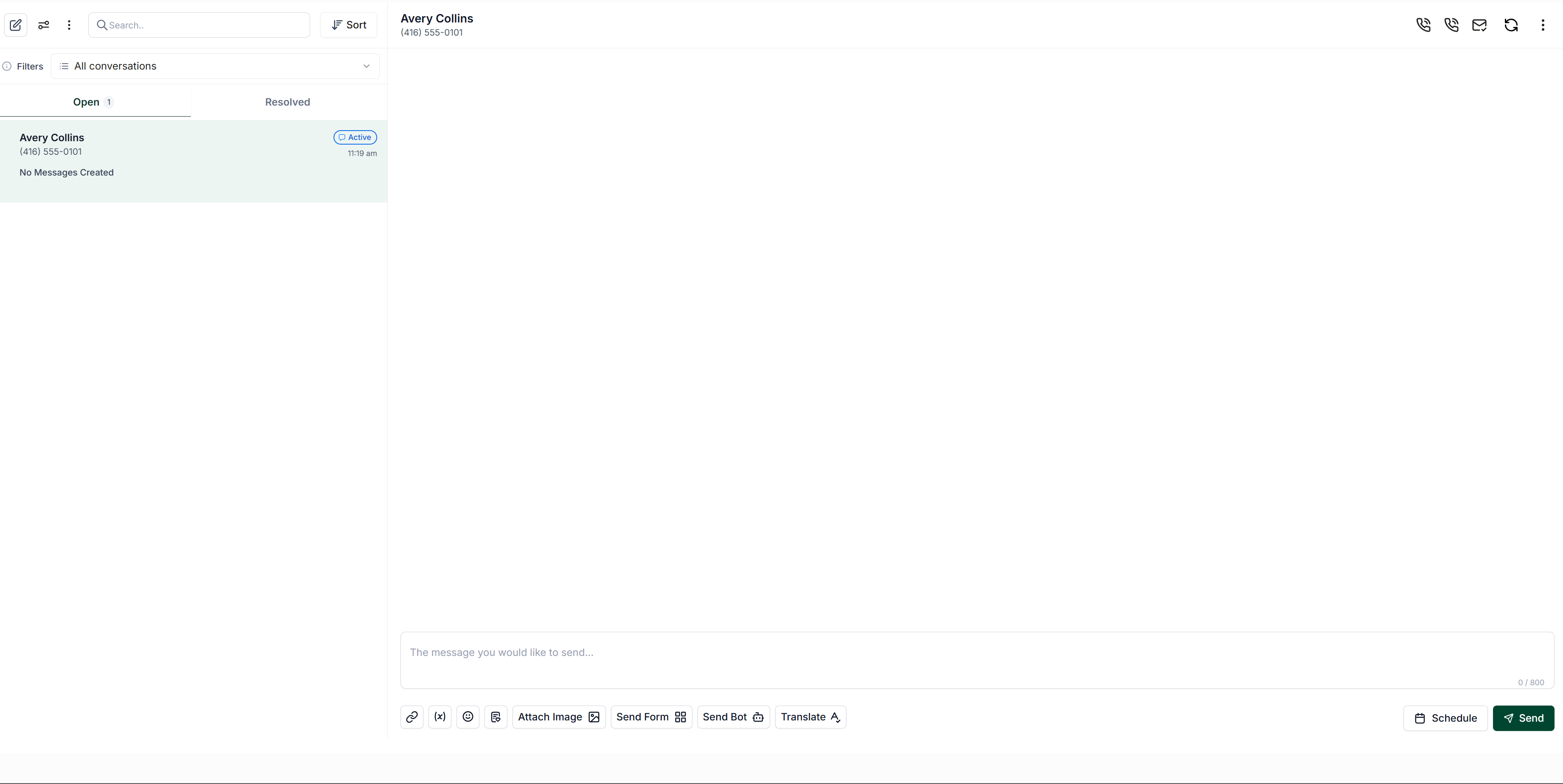
To initiate a two-way conversation with a contact, navigate to the Conversation screen and select the desired contact from your conversation list. If there is no active conversation with the contact, click the compose button located at the top left of the screen.
In the box that appears on the right, begin typing the name or number of the person you wish to message, then select them from the list provided.
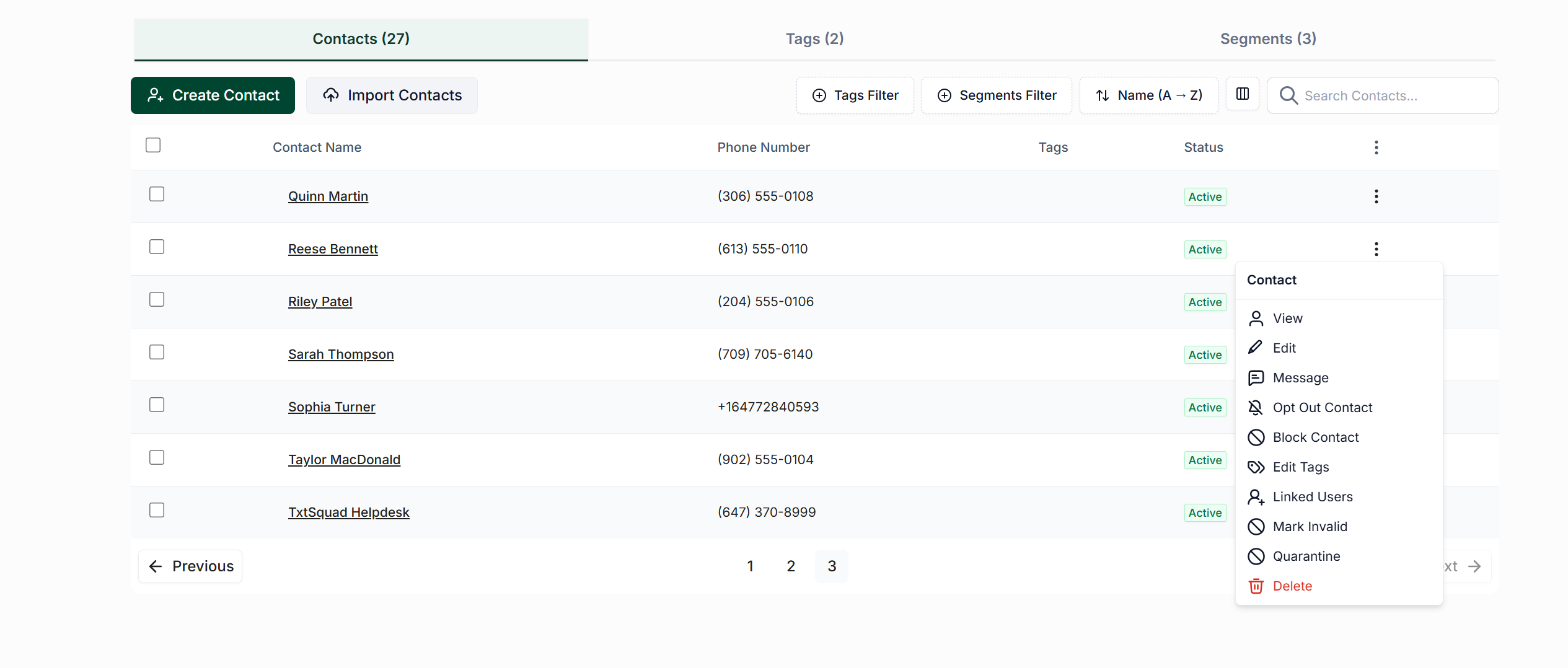
Alternatively, you can go to the Contact page, select the contact from the list, and click the three-dot menu in the top right corner of your screen. From there, select "Message" to start a conversation.
Type your message in the box at the bottom of the screen, then press "Send" to deliver your message.
Broadcasts
Broadcasts allow you to send a single message to a small or large group of contacts. You can target your broadcast to a specific group of people based on tags or segments, ensuring that you are messaging the right contacts.
Read more about Broadcasts
Surveys
Create and send a series of questions to a group of contacts to gather feedback and information effectively.
Read more about Surveys & Polls
Welcome Message
Send a pre-written message to individuals when they first initiate a conversation with your business or organization, providing a warm introduction.
Read more about Welcome Message
Out of Office Replies
Utilize Out of Office replies to automatically send a pre-written message to contacts when you or your team are unable to respond immediately. This feature is useful for after-hours communication or during vacations.
Read more about Out of Office and Temporary Away Messages
Keyword Confirmation
Automatically send a pre-written message in response to specific keywords or phrases used in a message, enhancing the responsiveness of your communication.
Read more about Keywords
Conversation Bot
Conversation bots can engage in back-and-forth communication with your contacts automatically, requiring no intervention once they are set up.
For more information, refer to the following article: